
2.36.24
The designer and its palette
The designer is where you draw a process: you place its nodes on the canvas, link them, and give each one its settings. This chapter explains the nodes you can place, how they may be linked, and how the designer checks your work. The page itself, with all its commands, is described in Designer.
You always draw on the definition's draft. Every change is saved at once, and nothing reaches the runs until you publish.
The palette
The nodes you can place are on the ribbon's Designer tab, in the Insert group. Activity is on Home too.

Activity opens the Activities list, from which you pick the activity: see Activities and connections. Every other command places its node at once.
- A new node lands in the upper left of what the canvas shows, so new nodes end up on or near each other. Drag each to its place; nodes snap to the canvas's grid. You can also drag an activity from the Activities list straight to its place.
- A new node gets a name: Start, End, Exclusive, Sub-process, or an activity's own name, such as Set Variable. A second one on the same canvas is numbered: Set Variable 2, Set Variable 3. Give it a name of your own under Display Name in its settings; the canvas then shows that.
- A node's settings open with the i on the node, which shows once you select it, or with Properties on the ribbon. They are saved as you type.
The nodes
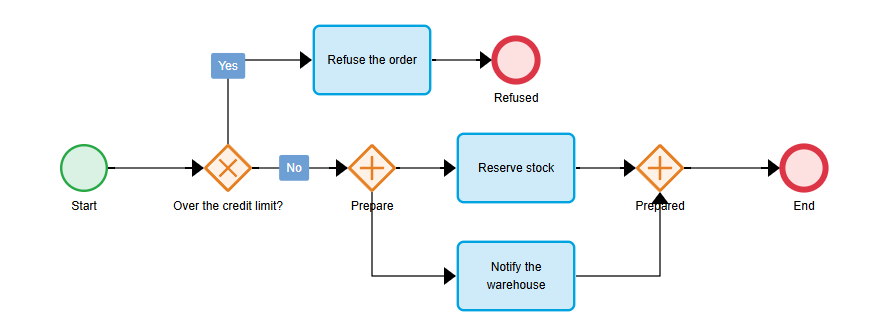
The process Check order above uses most kinds of node. From left to right: a start event, an exclusive gateway with two branches, activities, end events, and two parallel gateways that split the work and join it again.
Start event
A green circle. A run begins here. It has one way out, on its right.
A process needs a start event, and has one. A second one is allowed, but only the first is used, and the check warns about it.
End event
A circle with a thick ring. It has one way in, on its left, and nothing goes on from it. A process needs at least one, and each branch that splits off ends in one of its own, or joins another branch first.
What reaching it does depends on where it is:
- In the process itself (red), it ends the run, even when other branches are still running. Those branches stop where they are, and a form they were waiting for is closed. The run then Succeeded, or Failed when a branch had failed before: see Process run.
- In a sub-process (blue), it ends that sub-process once nothing else inside it is running, and the run goes on after the sub-process. An end event in a sub-process can end the whole run instead: pick Terminate the process run under When reached in its settings.
Terminate end event
An end event with a filled disc in its ring, red. It ends the whole run at once, from wherever it is reached. The palette offers it only on the canvas of a sub-process: in the process itself, every end event already ends the run. See How it ends.
Gateways
An orange diamond. A gateway splits a run into branches, or joins branches into one again. A gateway that has more than one way out splits, and one that has more than one way in joins; a gateway does one or the other, never both. To join branches and split them again, use two gateways. A gateway has four ports, one on each side, and each can be a way in or a way out.
How it splits depends on its kind:
| Gateway | Mark | Takes |
|---|---|---|
| Exclusive gateway | × | One branch: the first whose condition holds. |
| Inclusive gateway | + in a circle | Every branch whose condition holds. |
| Parallel gateway | + | Every branch, without conditions. |
Joining is the same for all three: the gateway waits until every branch that was taken has arrived, and then goes on once. A branch that an earlier gateway didn't take isn't waited for. Tick Pass Through in a joining gateway's settings to let each branch go on as it arrives, without waiting for the others.
Each branch of an exclusive or inclusive gateway gets a condition, and one can be the Fallback, taken when no other condition holds. The canvas writes a branch's Label on its link, or its condition when it has no label. How to write the conditions is explained in Gateways and conditions.
Activity
A blue rectangle with the activity's name in it. An activity does one step of the work: it sets a variable, sends an e-mail, reads a document. It comes from an integration module, and runs on an agent: see Activities and connections.
An activity has one way in, on its left, and one way out, on its right. It takes one link in and one link out. To do two things at once, split with a parallel gateway; to come together from two branches, join with a gateway first.
Sub-process
A rectangle with a + in a square at the bottom: a process of its own inside this one, with its own canvas, nodes and variables. Use it to keep a long process readable, or to repeat a series of steps for each item of a list. Click Open sub-process in its settings to draw on its canvas. A sub-process takes its values in through its Inputs and hands them back through its Outputs: see Inputs and Outputs. See Sub-processes and loops.
Start process run
A rectangle with an arrow to a bar at the bottom. It starts a run of another process definition, or of this one, at once or at a time you give, with the parameters you give it. Its Outputs give back the key of the run it started. The run it starts is a run of its own: this run doesn't wait for it. See Starting other processes.
Loops
An activity, a sub-process and a start process run can repeat themselves for each item of a list: tick Repeat for each item on their Loop tab, and pick the list under Array. A looping node shows a loop sign in its top left corner. Each item is available to the inputs as {Item}: see Inputs. A loop is a setting of the node; there is no loop node. See Loops.
Links
A link is an arrow from one node to the next. Drag from a node's way out to the other node's way in, and let go on it: see Connect the nodes in the tutorial. Links are drawn with straight, square corners, and you can't bend them.
The designer refuses a link it can't use, so you don't have to remember the rules:
- A link always goes from a way out to a way in.
- Events, activities, sub-processes and start process runs take one link in and one link out. A second link from or to the same side is refused.
- Two nodes are linked once at most.
- A gateway that joins takes no second way out, and one that splits takes no second way in.
To remove a link, select it and press Delete.
The check
The designer checks the process while you work, a moment after every change. On the right of the tabs it says No errors, or Errors (n) and Warnings (n). Click it to see the list: each line names the node, and what is wrong with it, such as Write the greeting: The input 'Message' is required, but has no value.
On the canvas, a node with an error gets a red border, and a node with only warnings an amber one.
- An error keeps you from publishing: Publish is disabled until the process has none (Fix the errors in the process before publishing it.).
- A warning points at something that is probably a mistake, but that a run can live with. You can publish with warnings.
These are the checks on the drawing itself. The checks on inputs, outputs, variables and expressions are in their own chapters, and every message is listed in the appendix: see Validation rules.
| Message | Severity | What to do |
|---|---|---|
| The process has no start event. | Error | Add a Start event. |
| The process has n start events; only one is used when a run starts. | Warning | Delete the others. |
| The process has no end event. | Error | Add an End event. |
| The node has no outgoing link; a run cannot continue past it. | Error | Link it to the next node, or to an end event. |
| The end event has an outgoing link, which is never followed. | Warning | Delete the link. |
| The node is not reachable from a start event. | Warning | Link a node to it, or delete it. |
| The sub-process has no nodes. | Error | Open the sub-process and draw its process. |
| The gateway has multiple outgoing links but no conditions. | Error | Give the branches their conditions. |
| The gateway has no fallback condition; a run fails when no condition matches. | Warning | Make one branch the Fallback. |
A sub-process is checked as a process of its own: its messages say sub-process where these say process.
Watching a run on the diagram
A run's Process tab shows the same diagram, with the state of each node in its border and an icon in its corner: dark blue while it runs, light blue once it has been handed to an agent, yellow while it waits for an agent or a form, green when it succeeded, and red when it failed. A looping node shows how far it got, such as 3/5. See Process run.
Related chapters
- Designer: the page, its commands, drawers and dialogs.
- Activities and connections: what an activity is made of, and how it reaches other systems.
- Inputs and Outputs: how values go into and come out of a node.