
2.36.24
Dashboards
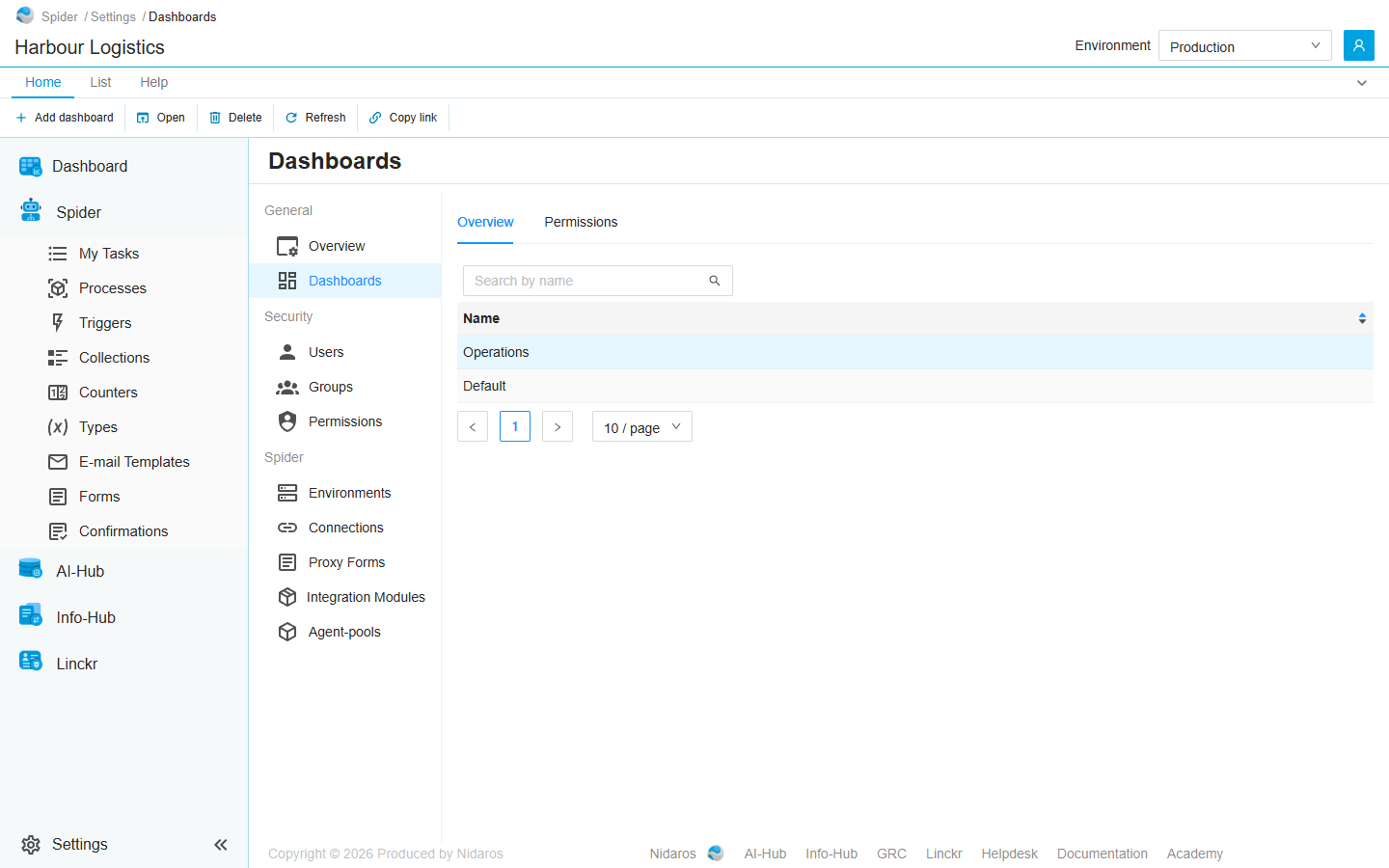
The organization's dashboards, by name, under Settings. This page adds and deletes dashboards, and says who may change them. A dashboard's widgets are arranged in its editor: see Editing a dashboard.
How to get there
- From the main menu: Settings › Dashboards, in the General group.
- From the breadcrumbs of a dashboard's editor: Dashboards.
Permission
The page is in the menu for those who may change dashboards: Change in the Dashboard section of this page's Permissions tab, or Manage organization. Member lets people see the dashboards, on Dashboard, but doesn't bring them here.
Some commands need more:
| Command | Permission sets that allow it |
|---|---|
| Add dashboard | Add, on this page's Permissions tab |
| Delete | Delete, here or on the dashboard's own Permissions tab |
| The Permissions tab | View permissions or Manage permissions |
Manage organization allows all of them. Commands you may not use are not shown; see Permissions.
Views
Overview
Every dashboard of the organization, in one column, Name. The default dashboard comes first, then the others by name; click the column header to reverse the order of the others. Type in Search by name to find a dashboard.
Double-click a dashboard, or select it and click Open, to see it on Dashboard. From there, Edit opens its editor. When a colleague adds or deletes a dashboard, the list shows it by itself.
Permissions
Who may do what with the organization's dashboards. Pick a user or a group on the left, and set each permission set to Allow, Deny or Not Set:
- Dashboard: List, View, Add, Change, Set as default and Delete. Change includes Set as default.
- Permission management: View permissions and Manage permissions.
- Individual permissions: the permissions on this tab one at a time.
A permission set given here holds for every dashboard. To give one for a single dashboard, use the Permissions tab of its editor: see Dashboard. See Permissions.
Commands
| Tab | Group | Command | What it does | Disabled when |
|---|---|---|---|---|
| Home, List | New | Add dashboard | Adds a dashboard: see Add dashboard. | |
| Home, List | Open | Open | Opens the selected dashboard. | Nothing is selected. |
| List | Open | Open in new tab | Opens it in a new browser tab. | Nothing is selected. |
| Home, List | Manage | Delete | Deletes the selected dashboard, after asking. | Nothing is selected, or you may not delete this one. |
| Home, List | View | Refresh | Reads the list again. | |
| Home, Permissions | Principals | Add group or user, Remove | Adds a user or group to the Permissions tab, or removes every permission the selected one has here. Permissions only. | Remove: no user or group is selected. |
| Home | Share | Copy link | Copies the link to the selected dashboard, or to this page. |
The default dashboard can't be deleted. Make another one the default first, with Set as default on Dashboard. Deleting the default anyway says only The dashboard could not be deleted. Please try again shortly.
Drawers and dialogs
Add dashboard
- Name: the dashboard's name, which no other dashboard of the organization may have.
Click Add, or Cancel. The new dashboard is empty: open it and click Add widget to give it widgets. Its name can't be changed afterwards.
When the name is taken, no dashboard is added, and nothing says so: check the list after adding.
Delete dashboard
Are you sure you want to delete this dashboard? Click Yes to delete it, or No.
Related chapters
- Dashboard: the dashboards themselves, and their editor.
- Lists
- Permissions