
2.36.24
Dashboard
The organization's dashboards: pages of tiles, called widgets, that show at a glance how the processes are doing, and offer the forms people use most. It is the page Spider opens when you choose an organization. An organization can have several dashboards; everyone sees the same ones, and one of them is the default, which Dashboard in the main menu opens.
Every organization starts with a dashboard named Default, with a welcome text and tiles that link to Forms, Confirmations, the legacy Spider's document confirmations, AI-Hub and the helpdesk. Dashboards are added and deleted on Dashboards, under Settings.
How to get there
- From the main menu: Dashboard. It opens the default dashboard.
- Choosing an organization opens it too.
- From Dashboards: double-click a dashboard, or select it and click Open.
Permission
To open the page you need Member, or List and View in the Dashboard section of the Permissions tab on Dashboards. Member also lets the widgets read what they show: the run counts, the processes and the agents.
Some commands need more. Each can be given for one dashboard, on the Permissions tab of its editor, or for all of them, on Dashboards:
| Command | Permission sets that allow it |
|---|---|
| Edit, and the editor | Change |
| Set as default | Set as default or Change |
| A form tile | Submit forms on its trigger: see Triggers |
Manage organization allows all of them. Member shows every dashboard, but doesn't let you change one. Commands you may not use are not shown; see Permissions.
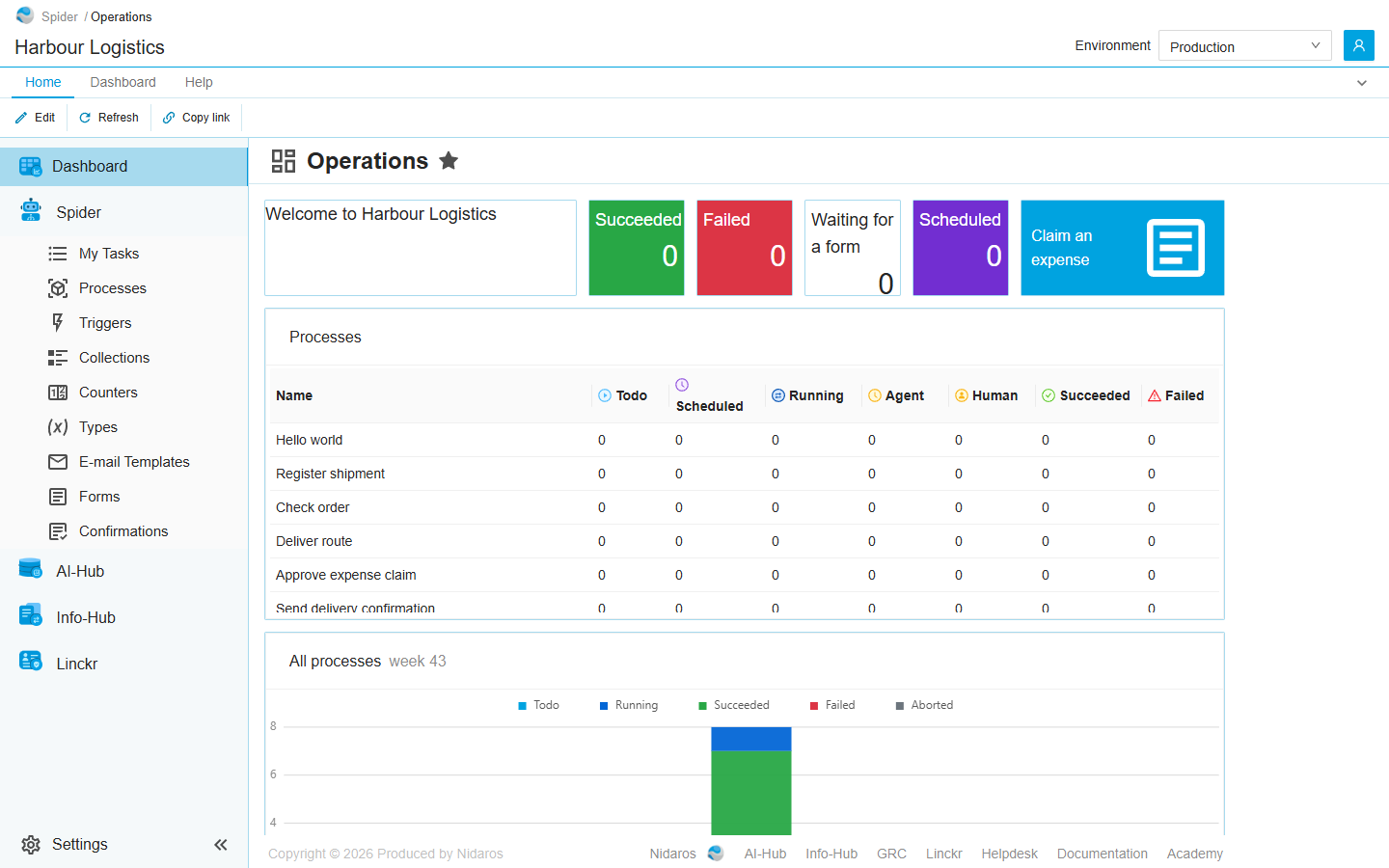
The dashboard
The header shows the dashboard's name, a star when it is the default, and when its widgets last read their data: Last updated 14:05:12.
The widgets read their data again by themselves every two minutes, or as often as Auto-refresh on the ribbon's Dashboard tab says, and when you click Refresh. The run counts also follow the Environment selector in the header, unless a widget is set to an environment of its own: see Environments.
When a dashboard has no widgets yet, the page says Customize and the dashboard's name, with a button Add widget that opens the editor. Without Change, an empty dashboard is just empty.
Widgets
| Widget | Shows | Settings |
|---|---|---|
| Welcome | Welcome to and the organization's name. | FontSize: the size of the text, as a CSS size such as large or 24px. |
| Process Run Count (Organization) | A coloured tile with the number of runs in one status, of all the organization's processes: for example Failed 1. It counts the runs that are in that status, and reached it within the period. | Status; Period: Today (since midnight) or Last 24 hours; Environment. |
| Processes | A table of every process, with its number of runs per status: Todo, Scheduled, Running, Agent (Waiting for an agent), Human (Waiting for a form), Succeeded and Failed. Hover over a column header for the status's full name. | Period; Environment. |
| Process Run Count Graph (Organization) | A bar per hour, or per day, with the runs of that hour or day by status: Todo, Running, Succeeded, Failed and Aborted. Running includes the runs that wait for a form or an agent; scheduled runs are left out. Its title names the process, or All processes, and the period: the date, week 43 or the month. | Period: Day (by the hour), Week (Monday to Sunday) or Month (by the day); Process Definition: one process, or empty for All processes; Environment. |
| Form | A tile with the name of a form trigger. Click it to fill in the form; submitting it starts the trigger's process, as Open form on Triggers does. A disabled trigger's tile says Disabled and opens nothing. A tile for a trigger whose form you may not submit isn't shown, outside the editor. | Form trigger; Label (empty shows the trigger's name). |
| Agents | A table of the organization's own agents, with their Name, Status, Agent-pool, SDK version and .NET version. | |
| Link | A tile that opens another page: Forms, Confirmations, the legacy Spider's document confirmations, AI-Hub or the helpdesk. | Preset: Forms, Confirmations, DocumentConfirmations, AIHub or Helpdesk. |
| Markdown | A card with a title and a text of your own, in Markdown. | Title; Content. |
Environment offers Follow selected (the default: the environment selected in the header, or all of them under All environments), Production (whichever environment is the production one), and each environment by name. See Environments.
A widget that can't read its data says so: a count shows a warning icon (The count could not be loaded), and the graph says The counts could not be loaded. A widget set to an environment that has since been deleted is one of them.
Commands

| Tab | Group | Command | What it does | Disabled when |
|---|---|---|---|---|
| Home, Dashboard | Edit | Edit | Opens the dashboard in the editor: see Editing a dashboard. | |
| Home, Dashboard | View | Refresh | Has every widget read its data again. | |
| Dashboard | Dashboard | Dashboard | Opens another of the organization's dashboards. The default comes first, then the others by name. | |
| Dashboard | Dashboard | Set as default | Makes this dashboard the organization's default, for everyone: the one Dashboard in the main menu opens. The page reloads after a moment. | The dashboard is the default already (This is the default dashboard already). |
| Dashboard | View | Auto-refresh | How often the widgets read their data again: every 15s, 30s, 1m, 2m or 5m. The browser remembers your choice until you next sign in. | |
| Home | Share | Copy link | Copies the link to this dashboard. |
Editing a dashboard
Edit opens the dashboard in its editor, a page of its own under Settings › Dashboards. Its header says Add, edit, move or resize your widgets.
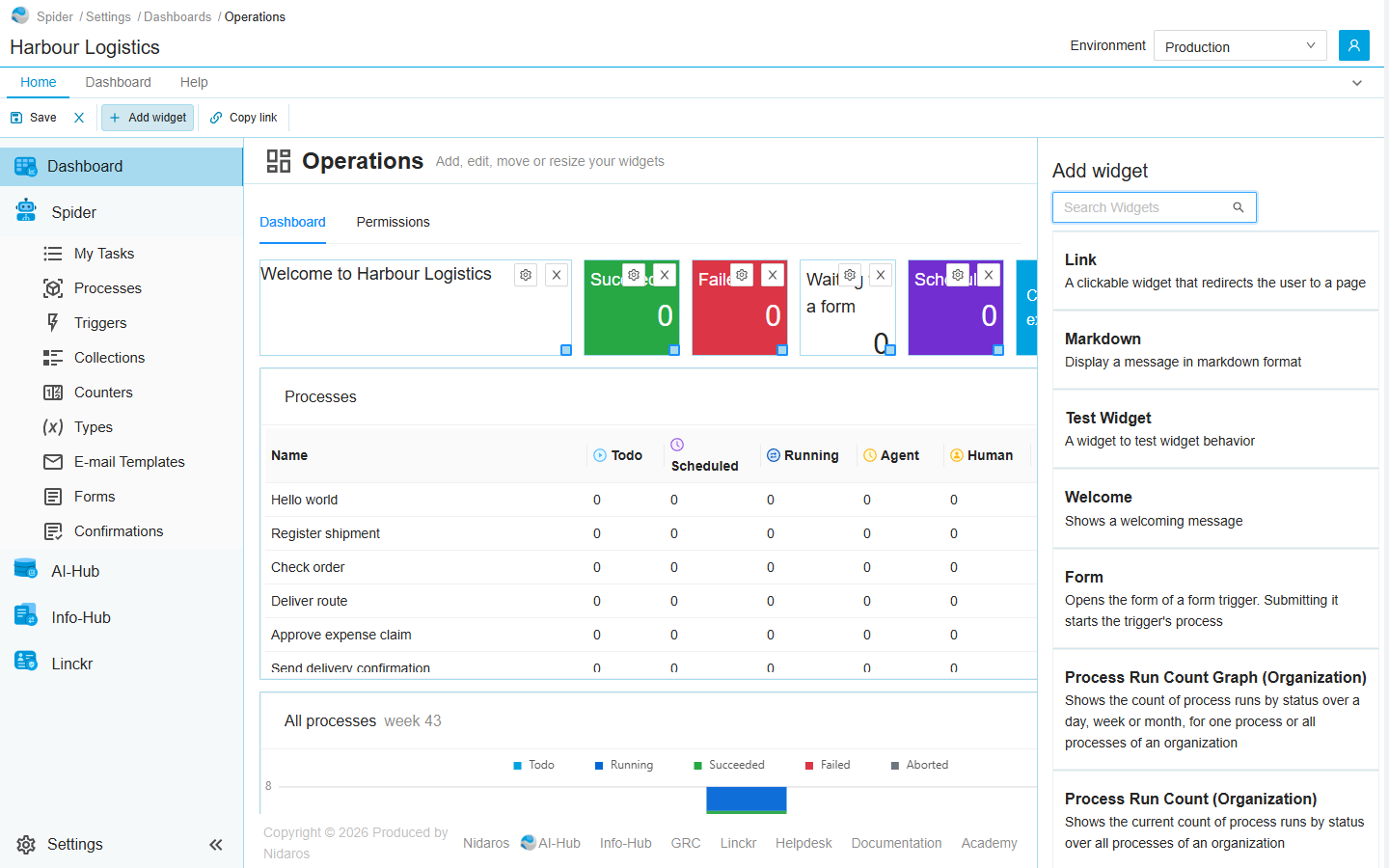
The widgets lie on a grid of 20 columns and 12 rows, and the editor shows all of it: scroll sideways to reach the columns on the right. In the editor:
- To move a widget, drag it to a free place. It lands where its top-left corner is nearest to; a place another widget takes is refused, and the widget goes back.
- To resize it, drag the handle at its bottom right. It grows only into free space.
- To change its settings, click the gear in its top-right corner: see Configuration.
- To remove it, click the cross, and Yes at Are you sure you want to delete this widget?
- To add one, click it in the Add widget list at the right. It goes to the first free place on the grid, from the top left, at its usual size; when there is no room for it, nothing is added. Type in Search Widgets to find a widget by its name. The widgets are those in Widgets; the list also offers a Test Widget, which is for testing the dashboard itself.
Nothing is kept until you click Save, which takes you back to the dashboard. Cancel goes back without saving; when you changed something, it asks first: Your changes to this dashboard have not been saved. Are you sure you want to discard them?
The widgets show their data in the editor too. A Form tile doesn't open its form there, and shows even when you may not submit it, so you can find it to move or remove it.
When someone else saves or deletes the dashboard while you edit it, a banner says so. Reload shows it as it is now, and loses what you changed: see Changed elsewhere.
A dashboard's name can't be changed in the editor.
Views
Dashboard
The editor described above. It is the tab the editor opens on.
Permissions
Who may do what with this dashboard. Pick a user or a group on the left, and set each permission set to Allow, Deny or Not Set:
- Dashboard: List, View, Add, Change, Set as default and Delete. Change includes Set as default.
- Permission management: View permissions and Manage permissions.
- Individual permissions: the permissions on this tab one at a time.
The same tab on Dashboards gives these for every dashboard at once. See Permissions.
Editor commands
| Tab | Group | Command | What it does | Disabled when |
|---|---|---|---|---|
| Home, Dashboard | Save | Save | Saves the dashboard as it is now, and goes back to it. | |
| Home, Dashboard | Save | Cancel | Goes back to the dashboard without saving, after asking when you changed something. | |
| Home, Dashboard | Widgets | Add widget | Shows or hides the Add widget list. | |
| Home, Permissions | Principals | Add group or user, Remove | Adds a user or group to the Permissions tab, or removes every permission the selected one has here. Permissions only. | Remove: no user or group is selected. |
| Home | Share | Copy link | Copies the link to the editor. |
Drawers and dialogs
Configuration
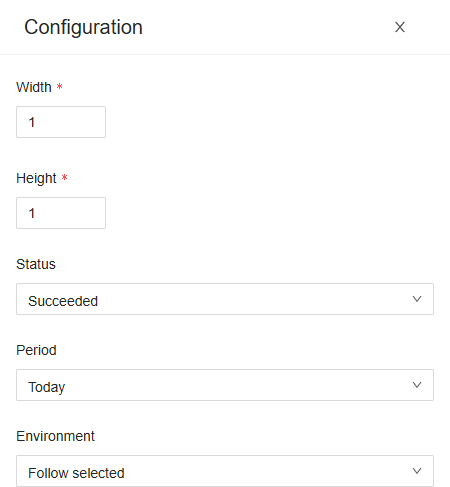
The gear on a widget, in the editor, opens its settings:
- Width and Height: its size, in cells of the grid.
- The widget's own settings: see Widgets.
Save shows the widget with its new settings; the dashboard keeps them once you click Save on the ribbon. Close leaves the widget as it was.
Discard changes
Your changes to this dashboard have not been saved. Are you sure you want to discard them? Yes goes back to the dashboard without saving, No stays in the editor.
Related chapters
- Dashboards: adding and deleting dashboards.
- Process run: what each run status means.
- Triggers: form triggers, whose forms a Form tile opens.
- Environments
- The ribbon