
2.36.24
Process definition
One process definition: its process, the parts it is made of, its versions and its runs. The page shows one version at a time, read-only. You start runs from here, and open the definition in the Designer to change it.
How to get there
- From the Processes page's All tab: double-click a definition. The page shows its latest published version. See Processes.
- From the Drafts tab: the page shows the draft.
- From the Versions tab of this page: the page shows that version.
- From a run: Definition on the ribbon's Process run tab, or the definition's name on the run's Details tab. The page shows the version that run ran.
The address names the version by its number in the definition's history: /process-definitions/<key>/3 is the third version saved. Without a number, the page shows the latest published version.
Permission
You need View definition on the definition, or View definitions for every definition. Member and View processes allow it for the whole organization.
| Command or tab | Permission sets that allow it |
|---|---|
| Start | Start run or Start runs |
| Edit | Change definition or Change definitions |
| Export | Export definition, Export definitions or Manage definition |
| The Runs tab | Member, View processes, or View run for the runs |
| Retry, Abort on the Runs tab | Resolve issues and run actions |
| The Diagnostics tab | Manage definitions |
| The Permissions tab | Manage definition, Manage definitions, View permissions or Manage permissions |
Manage organization allows all of them. Commands you may not use are not shown; see Permissions.
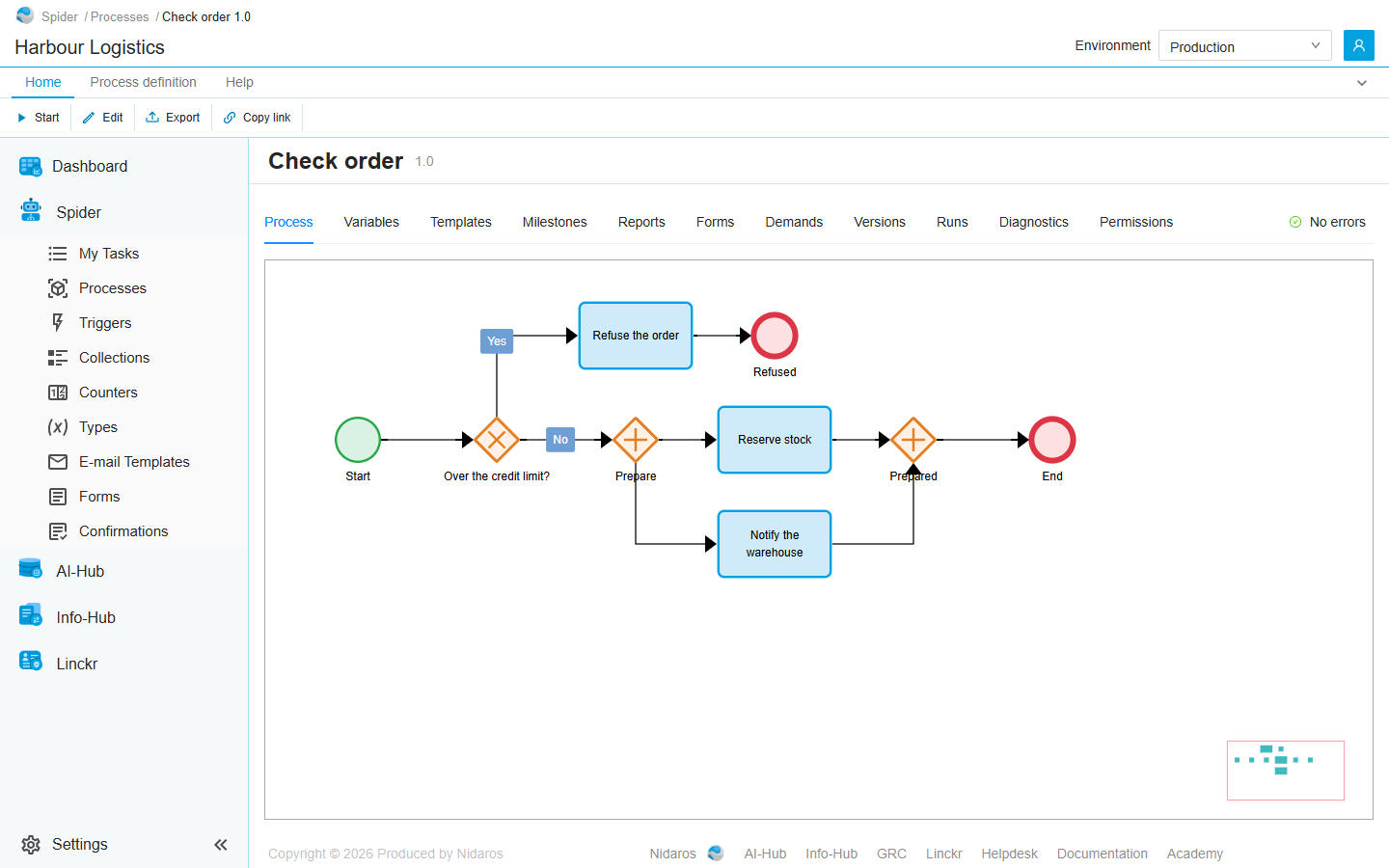
The page header
The header shows the definition's name and the version you are looking at, such as 1.0. A draft has no version yet, and shows a Draft tag instead:
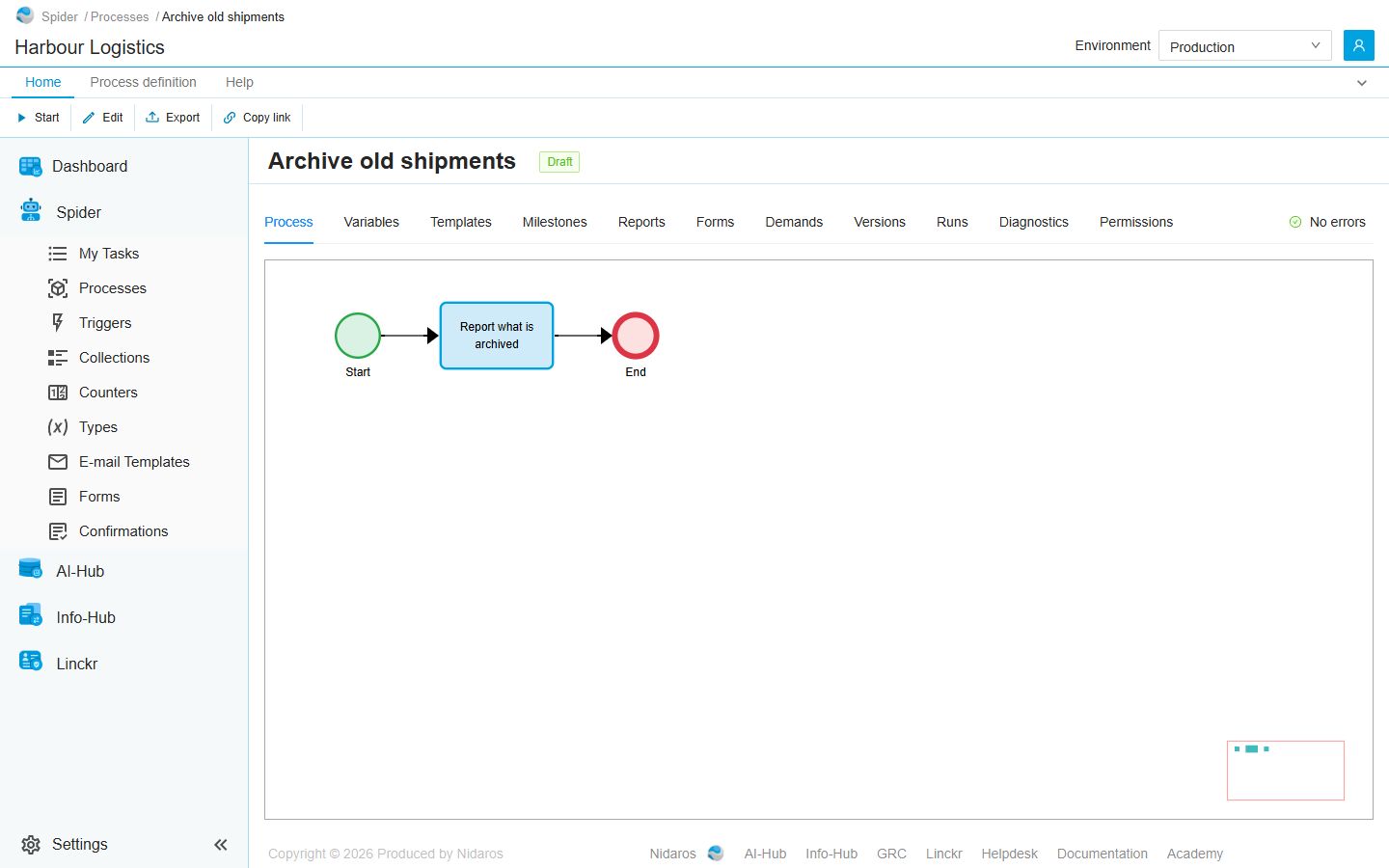
On the right of the tabs, the check of the process says No errors, or how many errors and warnings it found (Errors (2), Warnings (1)). Click it to list them, each with the node it is about. A node with a problem also has a coloured border in the diagram. A published version has passed the check, but a draft may not have.
Views
Process
The diagram of the process. Nothing can be moved here. Click a node's i to see its settings, read-only: an activity's inputs and outputs, a gateway's conditions, and so on. For a sub-process, Open sub-process shows its own diagram.
The small map in the bottom right corner shows which part of the process you are looking at. Drag the diagram, or use the mouse wheel, to look around.
Variables
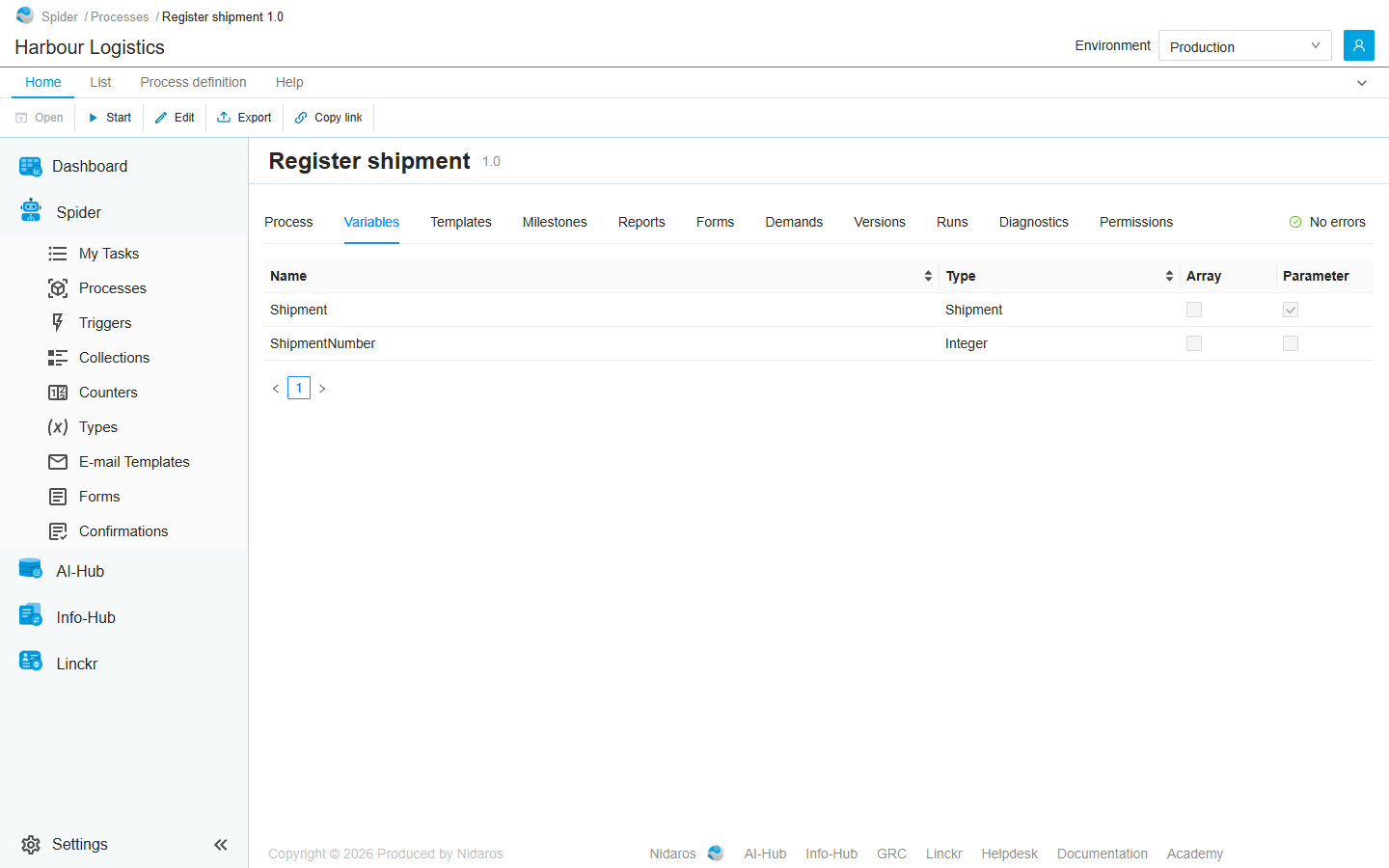
The process's variables, with their Name, Type, and whether each is an Array (a list of values) or a Parameter (a value given when a run starts). Open one to see its description and its default value.
Templates
The text templates the process uses, such as the body of an e-mail, with their Name, Parent (the template they build on), Format and Language. Open one to read it. See Templates and e-mail.
Milestones
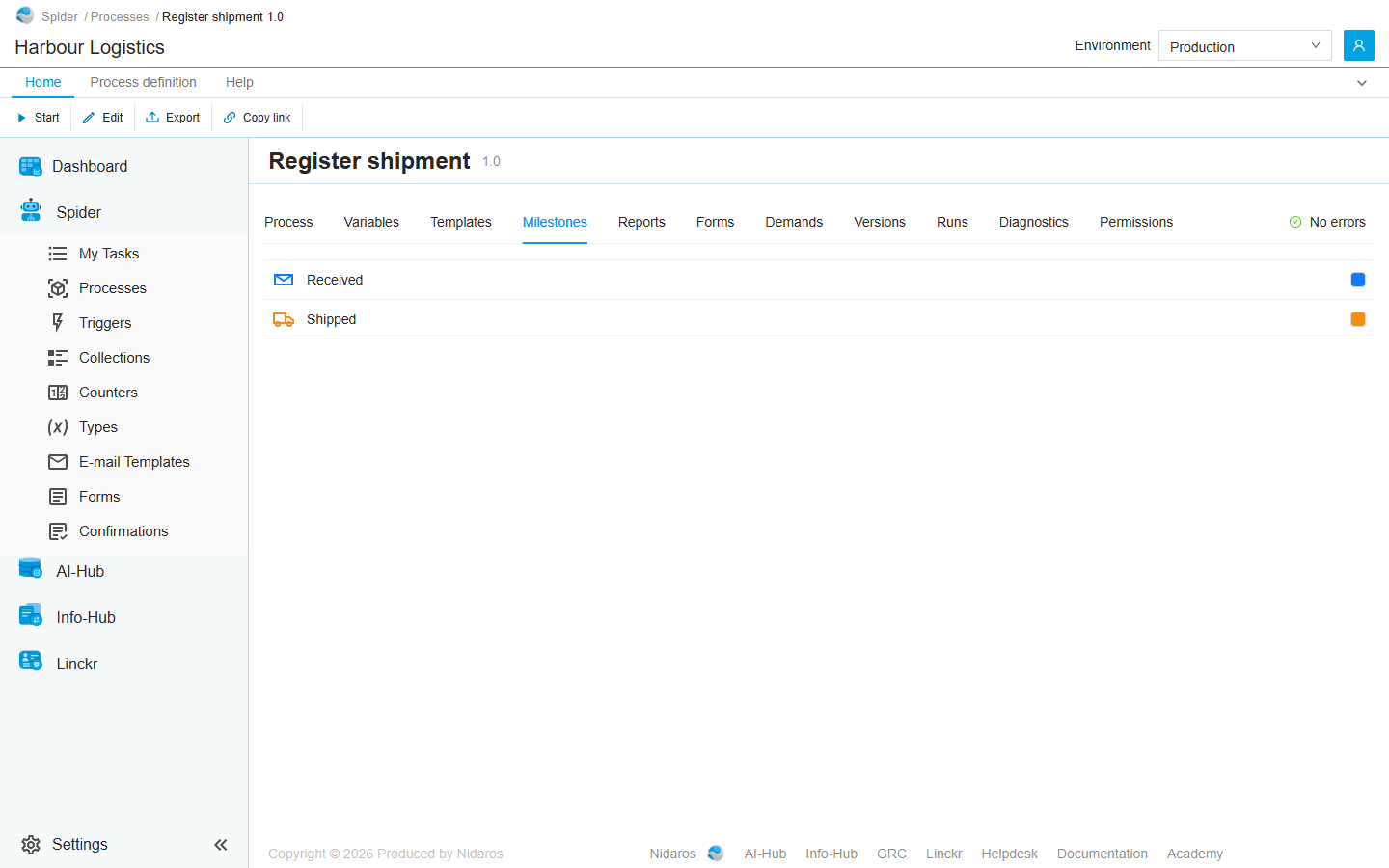
The milestones a run of this process can reach, in their order, each with its icon and colour. A run's milestones show on its page and in the lists of runs. See Milestones and reports.
Reports
The reports a run of this process can add, with their Name and Tags. See Reports.
Forms
The forms of the process, with their Name, Maximum width and the number of Controls: the start form a form trigger shows, and the forms of its user tasks. Open one to see it; Preview shows it as people will fill it in. See Forms and user tasks.
Demands
What an agent must have to run this process's activities: each demand's Key, and the Value it must have (or any value).
Versions
Every version of the definition: the draft, if there is one, with a Draft tag, and each published version with its number and when it was Published. Open a version to see it on this page.
Runs
The runs of this definition, of every version, in the environment selected in the header. It is the same list as the Processes page's Runs tab, without its Filter by Process.
Diagnostics
When an activity misbehaves, Diagnostics makes the activities of this process take screenshots, so you can see what the agent saw. The settings hold from the next activity on, in runs of every version. They are not part of the definition: they are not published and not exported.
- Every activity: Screenshots Off, On failure or Always, For 1 hour, 1 day or 7 days, counted from the moment you save.
- Per activity: Screenshots for one activity, until you turn them off.
Click Save in the ribbon to apply them, or Cancel. The screenshots appear in the runs' logs: see Process run.
Permissions
Who may do what with this definition and its runs. Pick a user or a group on the left, and set each permission set to Allow, Deny or Not Set:
- Definition: View definition, Change definition, Manage definition, Export definition and Start run.
- Run: View run, Change run and Manage run, for every run of this definition.
See Permissions.
Commands
| Tab | Group | Command | What it does | Disabled when |
|---|---|---|---|---|
| Home, Process definition | Save | Save, Cancel | Saves or undoes the Diagnostics settings. Diagnostics only. | Nothing has changed. |
| Home, Process definition | Run | Start | Starts a run: see Start Process Run. | |
| Home, Process definition | Design | Edit | Opens the definition in the Designer. Creates a draft first if it has none, after asking. | |
| Home, Process definition | Data | Export | Downloads the version you are looking at as a package file: see Export. | |
| Home, List | Open | Open | Opens the selected variable, template, form, version or run. | Nothing is selected. |
| List | Open | Open in new tab | Opens the selected version or run in a new browser tab. | Nothing is selected. |
| Home, Process run | Run | Retry, Abort | Retries or aborts the selected run. Runs only. See Process run. | As on the run's page. |
| Process run | Go to | Definition, Parent | Opens the selected run's definition, or the run that started it. Runs only. | |
| Home, List | View | Refresh | Reads the list again. Versions and Runs only. | |
| Home, Permissions | Principals | Add group or user, Remove | Permissions only. | Remove: no user or group is selected. |
| Home | Share | Copy link | Copies the link to this version of the definition, with its tab, or to the selected row. |
Start always starts the latest published version, or the draft, even when the page shows an older version. Publishing a draft is done in the Designer. A definition can't be deleted.
Drawers and dialogs
Start Process Run
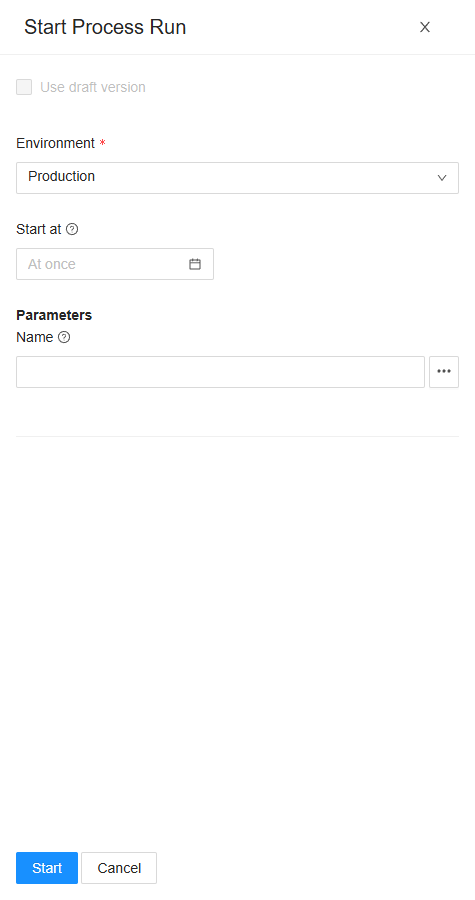
- Use draft version: start the draft instead of the published version. It can be changed only when the definition has both. It is ticked when you start from the draft's page, or when nothing has been published yet.
- Environment: where the run runs. It starts on the environment selected in the header, or on production when that is All environments. A draft never starts in production by itself: for a draft, pick the environment yourself. See Environments.
- Start at: leave it empty (At once), or pick a date and time to schedule the run. A time in the past asks first: The start time is in the past; the run will start immediately.
- Parameters: one field for each parameter of the version you start, filled with its default value. A file parameter takes a file to upload: at most 20 files and 200 MB a run.
Click Start. Spider opens the new run's page. See Process run.
A variable, a template, a form
Open a row on the Variables, Templates or Forms tab to see it in a drawer. Here they can only be read: Close is the only button. Change them in the Designer.
A node's settings
The i on a node in the diagram shows its settings, read-only. The drawers are the ones of the designer: see A node's settings.
Create new draft version
Edit on a definition without a draft asks first: This will create a new draft version, based on the latest version. Do you want to continue? Click OK to create the draft and open it in the designer.
When the definition changes
A published version doesn't change, but a newer one can be published while you look. Without a version in the address, the page then shows the new version by itself.
A draft can change while you look at it. The page doesn't reload then: a banner says "…" was changed by someone else., with Reload and Dismiss. See Live updates.
Related chapters
- Processes: every definition, and every run.
- Designer: changing and publishing a definition.
- Process run
- Environments