
2.36.24
Forms and user tasks
Some work needs a person: a claim to approve, a document to check, a value only someone in the office knows. A process asks for it with a form: the run shows it to the people you name, waits until one of them has filled it in, and goes on with what they entered. A form can also start a run, through a form trigger. This chapter explains how to design a form, how a process shows it, and what happens in the run meanwhile.
These forms are the process's own. The Forms item in the main menu is something else: the forms of the earlier Spider, described in Forms.
A process's forms
A process's forms are on the Forms tab of the designer, beside Variables and Templates. They belong to the whole process, sub-processes included. Each has:
- Name: The name of this form, as the Form activity offers it, unique in the process.
- Maximum width: how wide the form may grow when it is shown, in pixels or as a percentage of the window, such as 600px or 80%.
- Start form: Whether a form trigger may show this form to start a process-run with. See Start forms.
Add form on the ribbon adds one, and opens it in the form designer. Delete asks first: A Form activity that shows it keeps pointing at it until you pick another one.
Designing a form
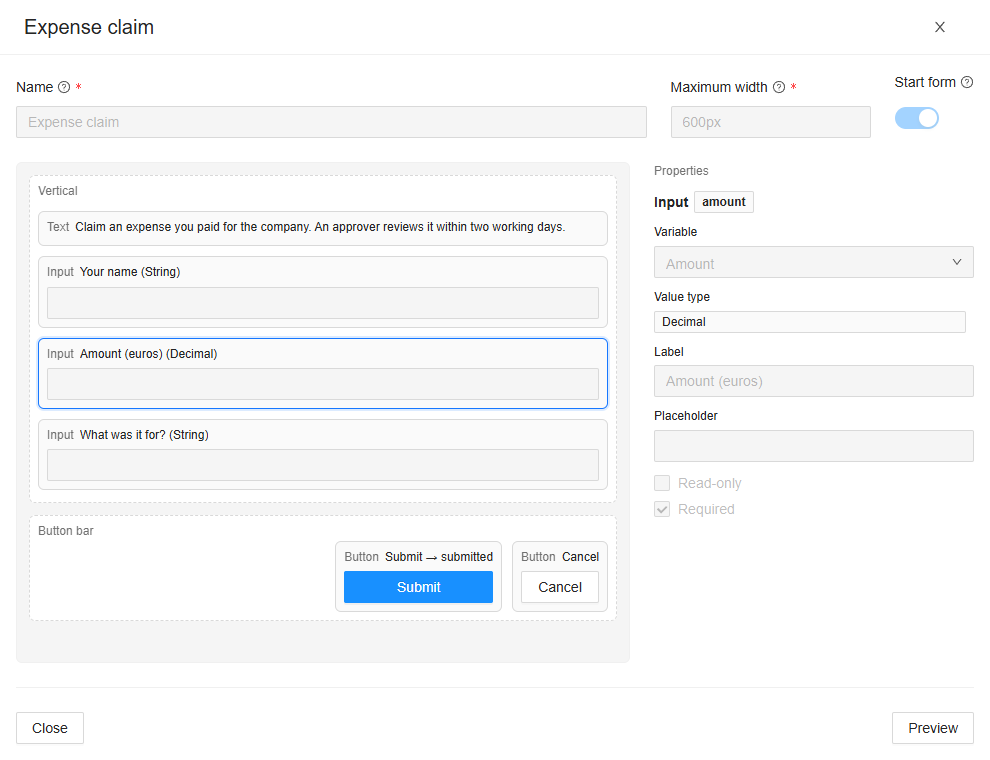
The form designer has three parts:
- The canvas, on the left: the form as it will look, with each part outlined and named, such as Input Amount (euros) (Decimal). Click a part to select it.
- The palette, on the right, with its Layouts and Controls. Click one to add it to what is selected, or drag it to its place on the canvas.
- Properties, below the palette: the settings of the selected part. Delete removes it.
Preview shows the form as people will see it, at its width, with every field empty; its buttons close it again.
Layouts
A form is a Vertical layout: its parts are placed one below the other. Inside it:
| Layout | Places its parts |
|---|---|
| Vertical | One below the other. |
| Horizontal | Side by side, as columns. A part's Column width sets its column's width, such as 200px or 30%; without one, the columns share the width. |
| Group | One below the other, in a box with a Label. |
| Tabs | On tabs of their own, one Tab each. |
| Steps | On steps of their own, filled in one after another, with Previous and Next. Next goes on only when the step's fields are filled in correctly. A form has one Steps at most. |
Controls
| Control | Shows |
|---|---|
| Text | A text, with headings, lists and images, which can hold the run's values, written as in a template. Click Edit text to write it. |
| Input | A field for one value: a text, a number, a yes or no, a date, a time. The field fits the type of its variable. |
| Rich text | A larger text with layout, such as a comment with bold and lists. |
| Dropdown | A list of Options to pick one from, with a Default. |
| Collection dropdown | The items of one of the organization's collections to pick from. Shows says what the list shows of each item, and Writes what goes into the variable. |
| List | A list variable, as a table with a row for each item. |
| File preview | A file of the run, such as a PDF, with buttons to zoom. Always read-only. |
| File upload | A place to upload a file: one for a File variable, any number for a list of files. File type limits it to PDF, CSV, XLSX or XML. |
| Analyzed fields | The fields an AI-Hub analysis found in a document, coloured by how sure it was (Confidence). |
| Summary | Every value of the form, as filled in so far, or a Template of your own. Useful on the last of a form's Steps. |
| Button | A button: see Buttons. |
Most controls have a Label, and the fields a Placeholder (the grey text in an empty field), Read-only and Required. A text field can demand words: Must contain some or all of a list of Terms, or of a collection's items.
A form holds 300 parts at most, nested 12 deep.
Variables
A form reads and writes the run's variables. Each field is bound to a variable under Variable (Select a variable or a property), or to a property of one, such as Shipment › Reference. Picking it sets the field's Value type, and its Label to the variable's name, which you can change.
- When the form opens, each field shows its variable's value at that moment.
- When it is submitted, each field's value is written into its variable, and the run goes on with them.
- A read-only field shows its variable but never writes it. Make a field read-only to show what the person decides about, such as the amount of a claim.
A form shows every variable of the process, those of its sub-processes included. But a field that writes must be bound to a variable of the process or sub-process the Form activity is in; a read-only field may show any variable the activity can read. A File variable can be written only by a File upload.
Buttons
Every form ends in a Button bar with Submit and Cancel, which can't be removed:
- Submit sends the form: its values are checked, written into the variables, and the run goes on.
- Cancel closes the form without sending it. The task stays open, for whoever opens it next.
A button that Submits the form gives a Result term, the word the run gets for it: Submit's is submitted. Add buttons of your own for a decision, each with its own result term: Approve (approved) and Reject (rejected), say. The Form activity puts the term of the button clicked in its Result, so a gateway after it can choose by it: eq({Decision}, "approved"). A button that doesn't submit only closes the form. A button's Colour makes it stand out.
Showing a form during a run
A process shows a form with the Form activity of the Spider module. Its inputs:
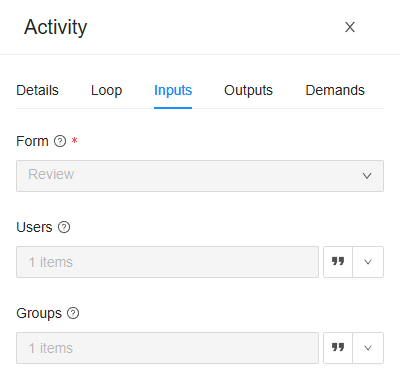
- Form: the form to show, picked from the process's forms.
- Users: The users who may open and submit the form, each a user key or an e-mail address.
- Groups: The groups whose members may open and submit the form, each a group key. Members of nested groups are included. A group's key is the last part of the address of its page under Settings › Groups.
Give at least one user or group. Both are lists, typed in with ❝ or worked out by an expression, such as a variable that holds the e-mail address of the customer's account manager.
Its output, Result, is the Result term of the button that sent the form: see Buttons. The values themselves don't go through Result: they are in the variables the form wrote.
What happens in the run
- When the run reaches the Form activity, it makes a task: the form, for the people you named. The node is Waiting, and the run Waiting for a form; its log says Waiting for the form to be submitted.
- The task shows on My Tasks of each of those people, when the run's environment is selected in the header. One of them opens it; while it is open, nobody else can (Task is locked). See My Tasks.
- When they submit it, Spider checks the values again: required fields, types, the options of a dropdown. A value that doesn't fit is refused, and the form stays open.
- The values go into their variables, the node succeeds (Form submitted with result 'submitted'), and the run goes on.
A run can wait for a form for as long as it takes: days, if need be. Abort the run to stop waiting: its tasks then close (This task is no longer available). So do they when the run ends some other way, or the node is cancelled.
People see a task only when they are among its users or in its groups, and have the Member or View tasks permission set; submitting needs Member. See My Tasks.
Check the users and groups before you publish. The designer doesn't: a Form activity without users and groups, or with a group that isn't a key, fails only in the run. A process imported from another organization keeps the other organization's users and groups, and its tasks then reach nobody.
Start forms
A start form is filled in to start a run, through a form trigger. Its fields are the run's parameters: when it is submitted, a run starts with the values entered. Tick Start form in the form's settings to make it one. A start form:
- can use only the process's parameters: A start form can only use the parameters of the process. Its texts can't read other variables either, since the run doesn't exist yet;
- can't show files or analyzed fields, which a run doesn't have before it starts. A File upload is fine: the files become the parameter's;
- opens with the parameters' default values.
A Form activity can show a start form too, once the run has started.
Approve expense claim has both kinds: the start form Expense claim, which the form trigger Claim an expense shows, and Review, which the activity Review the claim shows to the approvers, with the claim read-only and a Comment to fill in.
What the check says
These are the most common messages. A form's own messages name it, and the part they are about, such as the input 'Amount (euros)':
| Message | What to do |
|---|---|
| The form 'Review' has the input 'Comment' that is not bound to a variable. | Pick its Variable. |
| The form 'Review' has the input 'Comment' bound to a variable that no longer exists. | Pick another variable. |
| The form 'Review' has the input 'Amount' that edits a value of type 'Decimal', but it is bound to a value of type 'String'. | Bind a variable of the field's type. |
| The form 'Expense claim' is a start form, but the input 'Comment' is bound to variable 'Comment', which is not a parameter of the process. A start form can only use the process's parameters. | Make the variable a parameter, or untick Start form. |
| The form 'Review' has the button 'Approve', which submits the form but has no result term. | Give it a Result term. |
| The form 'Review' has the dropdown 'Decision' without any options. | Add its Options. |
| The input 'Form' is bound to a form that does not exist. | The form was deleted: pick another one. |
| The input 'Form' shows the form 'Review', in which the input 'Comment' edits variable 'Comment', which this activity's graph does not declare. Make the control read-only, or bind a variable of this graph. | In a sub-process: bind the field to the sub-process's own variable, or make it read-only. |
Unlike the other checks, the server checks a process's forms again when it is published, so a process with a broken form can't be published at all.
Related chapters
- My Tasks: where people find their tasks, and fill them in.
- Triggers: starting a run with a start form.
- Variables and parameters: the variables a form reads and writes.
- Gateways and conditions: choosing a way by the button clicked.