
2.36.24
Issues
The problems Spider reports that need someone to look at them: a process run that failed, a trigger that failed, an agent put into maintenance. Support works them off here: they read what went wrong, retry or abort from the issue itself, send an e-mail or a ticket, and resolve the issue with a note on what was done.
Issues are for the whole of Spider: one list, across every organization and environment. There is no issue list inside an organization.
How to get there
- From Administration's main menu: Issues.
- From a link in an e-mail or a ticket an issue action sent: it opens the list with that issue open.
Permission
The page needs View issues, in the Business support section of Administration's Permissions. It also lets you read the runs, triggers and agents the issues are about. Working on an issue needs more:
| What | Permission sets that allow it |
|---|---|
| Add note, Resolve, Dismiss | Resolve issues and run actions |
| Running an action, and Retry run, Abort run, Retry node and Take out of maintenance on the issue | Resolve issues and run actions |
| Filter by Organization | View issues or View organizations |
Full access allows all of them. What you may not do is not shown; see Permissions.
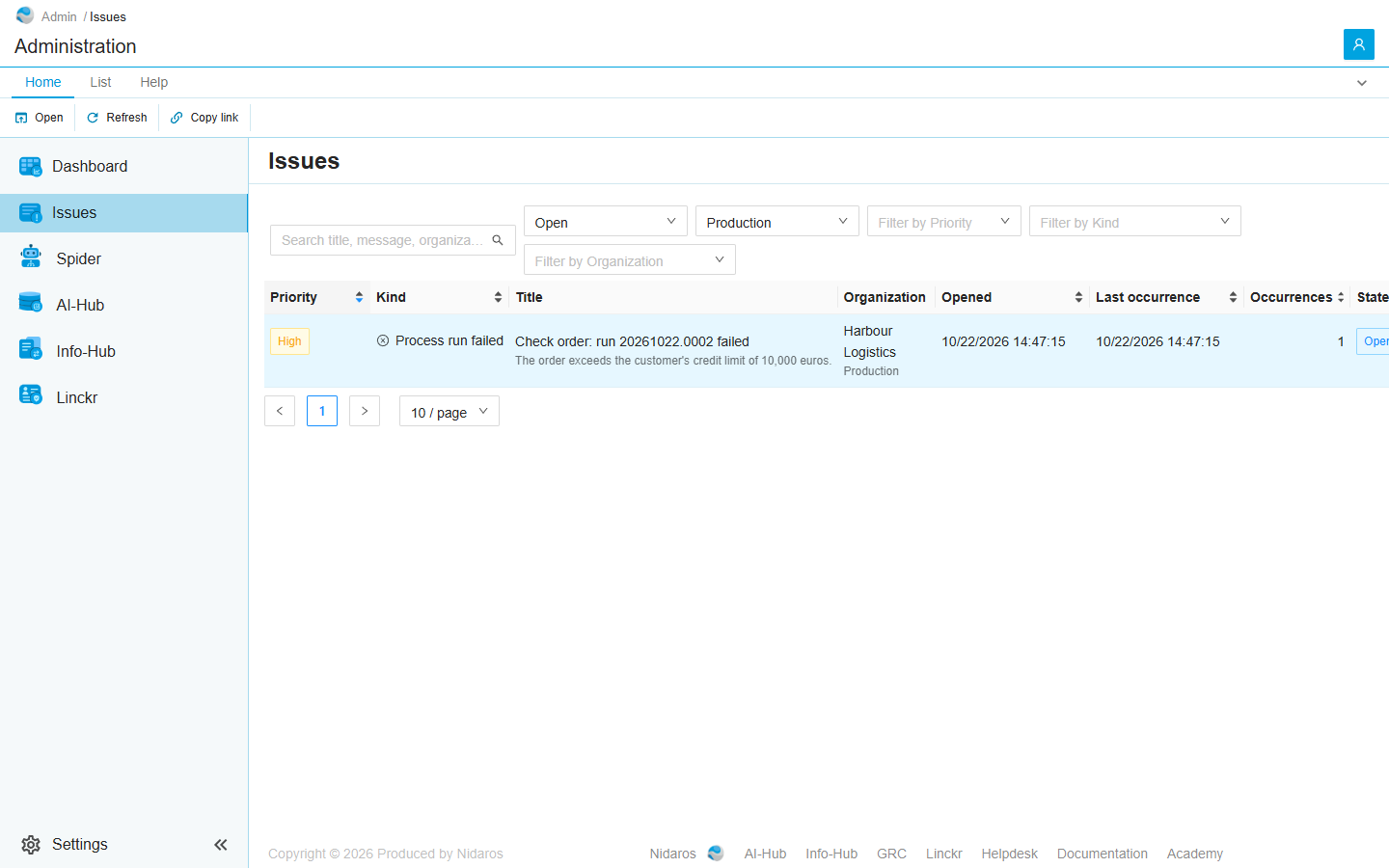
The list
The open issues of the production environments, the most urgent first, and of one priority the oldest first.
| Column | Shows |
|---|---|
| Priority | Critical, High, Normal or Low: see Priorities. |
| Kind | What happened: Process run failed, Trigger failed or Agent put into maintenance. |
| Title | The issue's title, with the latest message under it. Hover over the message to read all of it. |
| Organization | The organization, with the environment under it. Shared for an issue of an agent no organization owns. |
| Opened | When the issue was raised. |
| Last occurrence | When it last happened. |
| Occurrences | How often it happened. |
| State | Open or Resolved. |
| Opened by | Who has the issue open right now: You, or a colleague's e-mail address. Someone who has it open holds it: see Holding an issue. |
With Resolved or Open and resolved picked, three more columns show Resolution, Resolved at and Resolved by.
Above the list:
- Search title, message, organization or resource: every word you type must appear in the title, the message, the name of what the issue is about, or the organization's name.
- The state: Open (the default), Resolved, or Open and resolved.
- The environment: Production (the default), Non-production, or All environments. An issue that belongs to no environment, such as an agent's, is always listed.
- Filter by Priority, Filter by Kind and Filter by Organization.
Click a column header to sort. The search, the filters, the sorting and the page are kept in the page's address, so a link copied from it opens the same selection.
Double-click an issue, or select it and click Open, to work on it in the issue dialog. A new issue, or one that happens again after it was resolved, shows as a bar Load {n} more above the list: click it to see them. A change to an issue already listed shows by itself.
What an issue is
One issue per problem. Spider raises an issue the first time something fails, and counts the failures after it as occurrences of the same issue, as long as it is open: every failure of one trigger, say, is one issue. A run's issue is that run's.
Resolving. An issue is resolved in one of two ways:
- By Spider, when the problem goes away: a retried run succeeds (Recovered or Succeeded), a trigger runs well again (Recovered), the run or its trigger runs are aborted (Aborted), or the agent is taken out of maintenance (Recovered).
- By you, with Resolve (Fixed) or Dismiss (Dismissed), each with a note.
A resolved issue is read-only. When the problem comes back, the same issue opens again: its history says Reopened.
Failures since recovery counts the failures since the problem last went away, and starts again at each recovery. Rules can act on it: retry the first failure, say, and only e-mail at the third. See Rules.
The title and message are those of the latest occurrence, as they were then. When a process is renamed afterwards, its issues keep the old name.
Commands
| Tab | Group | Command | What it does | Disabled when |
|---|---|---|---|---|
| Home, List | Open | Open | Opens the selected issue in the issue dialog. | Nothing is selected. |
| List | Open | Open in new tab | Opens it in a new browser tab. | Nothing is selected. |
| Home, List | View | Refresh | Reads the list again. | |
| Home | Share | Copy link | Copies the link to the selected issue, or to this page. |
Everything you do to an issue, you do in its dialog.
Drawers and dialogs
The issue
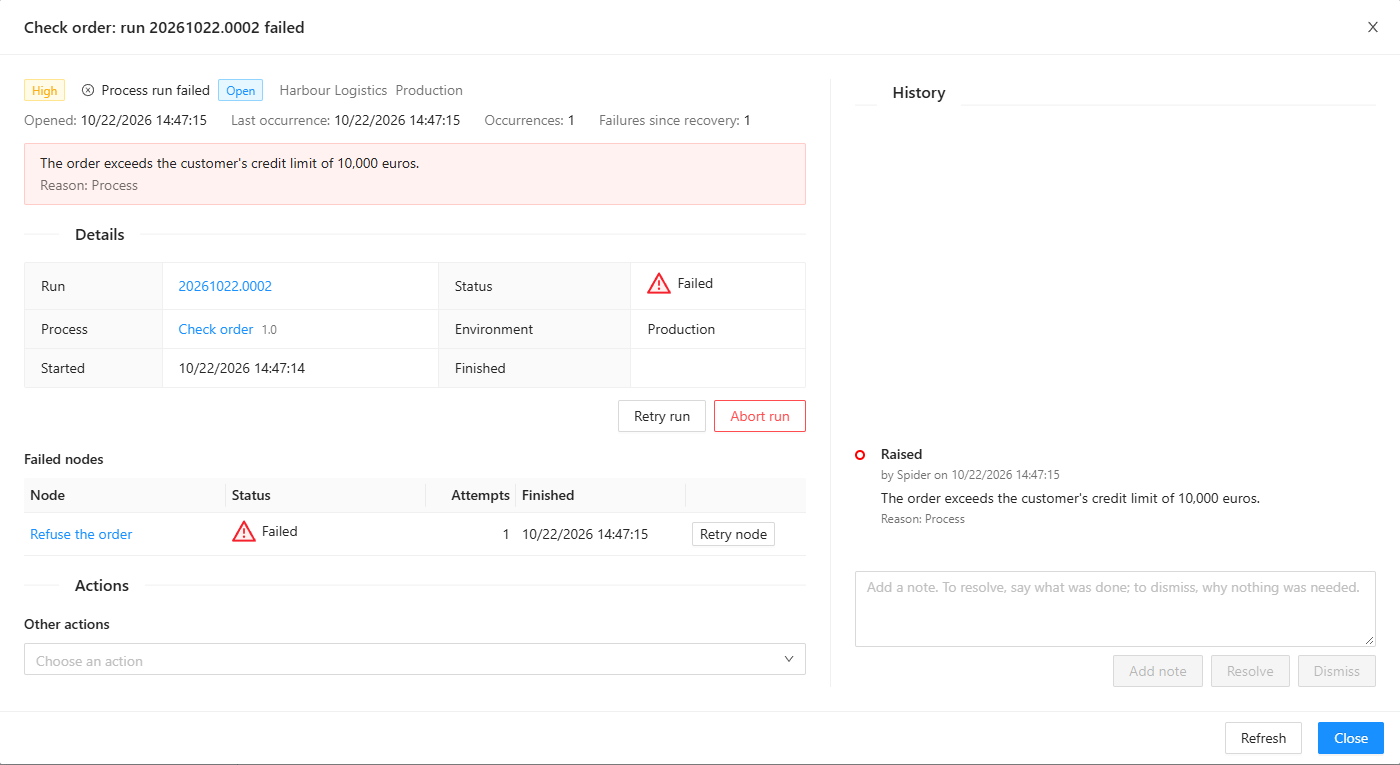
The dialog is titled with the issue's title. At the top:
- The priority, the kind, the state, the organization and the environment. Once a ticket action created a ticket, Zammad ticket {number} links to it.
- Opened:, Last occurrence:, Occurrences: and Failures since recovery:.
- The latest message, in red, with Reason: under it when Spider gives one: Spider, Agent, IntegrationModule, Activity or Process, after what the failure came from.
- A note when you can't change the issue: Resolved as … by … on … for a resolved issue, You can view this issue, but not change it., or that someone else has it open (see below).
Details
What the issue is about, read as it is now, with the commands that fix it:
- Process run failed: the Run, its Status, the Process and its version, the Environment, Started and Finished. Retry run retries the run; Abort run aborts it, after asking (Are you sure you want to abort this process-run?). Failed nodes lists the nodes that failed, with their Status, Attempts and Finished: Retry node retries one, and the node's name opens its log. See Process run.
- Trigger failed: the Trigger, its State, Type and Environment, and its Failed runs, each with its Message and Started. Retry (for a trigger that runs on an agent) and Abort act on one run. The latest 5 of 12 failed runs. says when there are more: Show all shows them.
- Agent put into maintenance: the Agent and its Status, Organization, Pool and Reason, with Live view to its Live tab. Take out of maintenance does that, after asking.
When the run, trigger or agent can't be read any more, the section says so: it may have been deleted.
Actions
What can be done about the issue by e-mail, by ticket or by Spider itself. It shows only on an open issue.
- Suggested by the rule …: the actions the first rule that fits the issue suggests, in order. They are the latest occurrence's: each new occurrence brings its own.
- Other actions: pick any other action that can act on this issue in Choose an action.
An e-mail or ticket action has Preview, which opens it written out for this issue, with its data as it is now: see Preview. One of Spider's own actions, such as retrying what failed, has Run, which asks first (Run the action … on this issue now?) and says how it went.
History
On the right, everything that happened to the issue, oldest first: Raised, Occurred again (#n), Reopened (#n), Retried, Recovered, Resolved as …, Dismissed, each Note, what rules Suggested, and each Action with how it went (Scheduled, Running, Succeeded, Failed or Cancelled). Each says who did it, and when: a user, Spider, or Automatic (rule …) for an automatic rule's action.
Notes, resolving and dismissing
Under the history, a box to write in: Add a note. To resolve, say what was done; to dismiss, why nothing was needed. With text in it:
- Add note adds it to the history.
- Resolve resolves the issue as Fixed, with the note as what was done, after asking (Resolve this issue, with the note as what was done? It becomes read-only.).
- Dismiss resolves it as Dismissed, with the note as why nothing was needed, after asking.
Resolving cancels the steps of an automatic rule that were still waiting.
Holding an issue
Opening an open issue holds it for you, so that two people don't act on it at once: the list's Opened by shows You, and your colleagues see it read-only, with … has this issue open, until 14:32 at the latest. It is read-only to you until then. You hold it for as long as the dialog is open, and closing the dialog lets go. When a browser is closed with the dialog still open, the hold lapses after two minutes.
Refresh, at the bottom, reads the issue again and takes hold of it when it has become free. Close closes the dialog. The dialog shows changes to the issue by itself, such as a colleague's note or an action that ends.
Preview
The e-mail or ticket an action would send, written out with the issue's data as it is now: Nothing is sent until you confirm. An e-mail shows its To, Cc, Subject and message; a ticket its Group, Customer, Priority, Title and message.
- Confirm sends it. The history shows how it ends.
- Render again writes it out again, with the data as it is by then.
- Cancel closes the preview.
When the action can't be written out for this issue, the preview says why, and Confirm stays disabled. These names have no value for this issue: … warns about a placeholder the issue has no value for; it is written out empty.
When the issue has a Zammad ticket already, a ticket action adds its message to that ticket as an internal note.
Related chapters
- Priorities, Actions and Rules: the issue settings.
- Process run and Trigger run: retrying and aborting.
- Agent: maintenance.
- Overview: an organization's support e-mail address.