
2.36.24
Integration Modules
Every integration module uploaded to Spider: the catalogue organizations activate modules from. You upload a module here, and each new version of it.
An organization doesn't see a module until it activates it, on its own Integration Modules page. Activation is the organization's: this page neither activates nor shows which organizations use a module.
How to get there
- From Administration's Settings: Integration Modules, in the Spider group.
Permission
The page needs View integration modules; Add integration module needs Manage integration modules. Both are in the Platform section of Administration's Permissions, and Full access allows them too. Manage organization, inside an organization, doesn't let anyone upload a module. See Permissions.
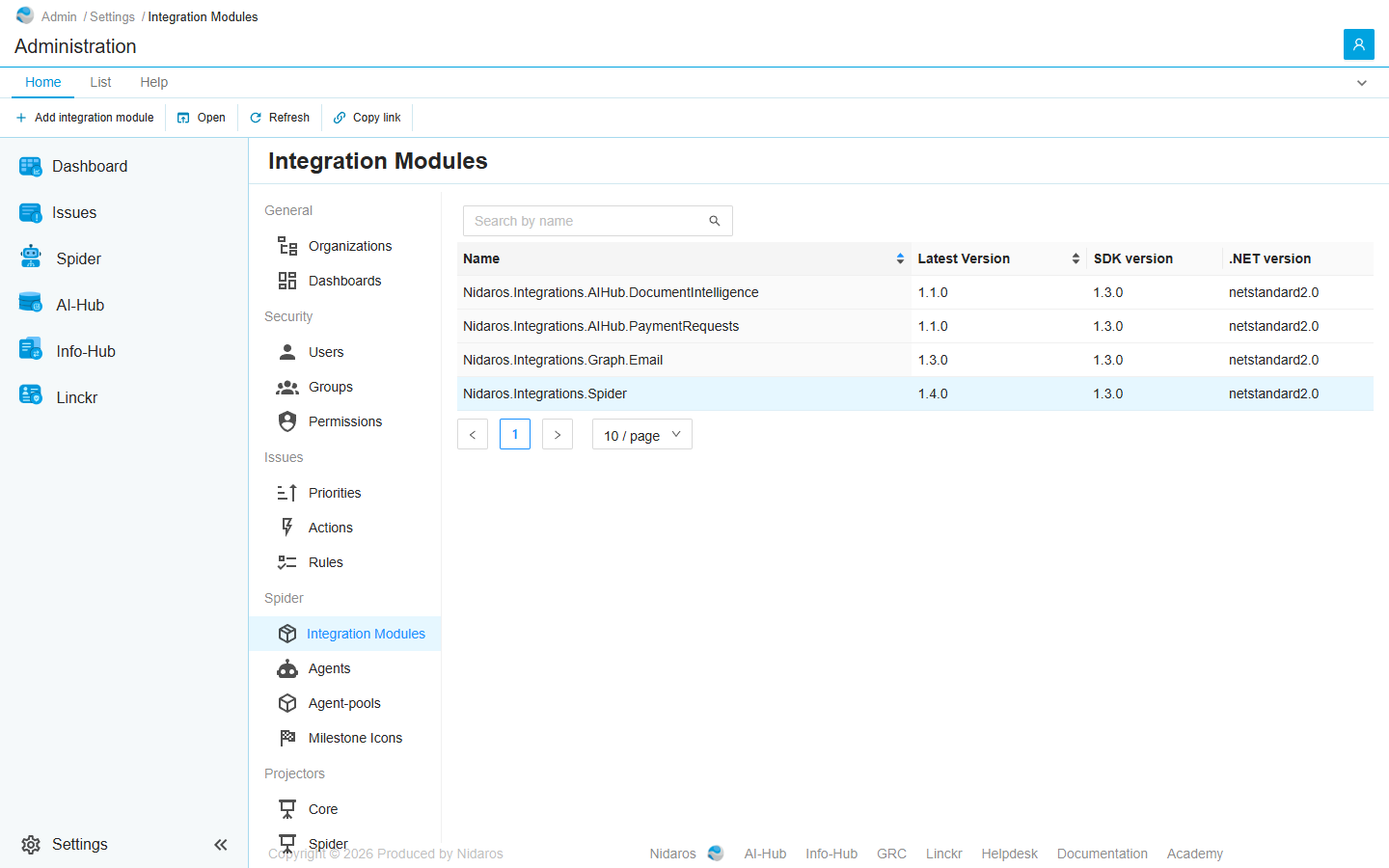
The list
| Column | Shows |
|---|---|
| Name | The module's package id, such as Nidaros.Integrations.Spider. |
| Latest Version | Its highest version number. Uploading an older version doesn't change it. |
| SDK version | The version of the Spider SDK the latest version was built with. |
| .NET version | The .NET it was built for. |
Type in Search by name to find a module. Click Name or Latest Version to sort.
Double-click a module, or select it and click Open, to see its latest version: see Integration Module.
Commands
| Tab | Group | Command | What it does | Disabled when |
|---|---|---|---|---|
| Home, List | New | Add integration module | Uploads a module, or a new version of one: see Add integration module. | |
| Home, List | Open | Open | Opens the selected module's latest version. | Nothing is selected. |
| List | Open | Open in new tab | Opens it in a new browser tab. | Nothing is selected. |
| Home, List | View | Refresh | Reads the list again. | |
| Home | Share | Copy link | Copies the link to the selected module, or to this page. |
A module, or one of its versions, can't be deleted.
Drawers and dialogs
Add integration module

Click Click to Upload and pick the module's package: a NuGet package (.nupkg) of at most 10 MB. Then click Add, or Cancel.
Spider reads the package and catalogues what it holds: its activities, triggers, connection types and types. The package's id decides the module; its version, the version:
- A new id adds a module.
- A known id with a new version adds that version to the module. Every organization that activated the module has it at once: activation holds for all of a module's versions.
- A version uploaded already is refused: Integration-module with package-id '…' and version '…' already exists. A version can't be uploaded twice, nor replaced.
When Spider can't read the package, or a part of it doesn't load, nothing is added, and Spider says why. When it could catalogue most of the package but not all of it, the module is added, and a notice that stays until you close it lists what was left out: Integration module added with warnings. Not everything in the package could be catalogued:.
The upload shows no progress, and a module that is added says nothing: the list shows it once Spider has catalogued it. A file over 10 MB isn't taken: the drawer shows no file, and Add stays disabled.
Related chapters
- Integration Module: one version's details, activities and versions.
- Integration Modules, in an organization's settings: activating a module.