
2.36.24
Connections
The organization's connections: the logins and settings that activities and triggers use to reach another system, such as a mailbox or AI-Hub. A connection holds its settings once for each environment, so Test can use a test mailbox while Production uses the real one.
How to get there
- From the main menu: Settings › Connections, in the Spider group.
Permission
The page needs Manage organization, which also allows its commands. See Permissions.
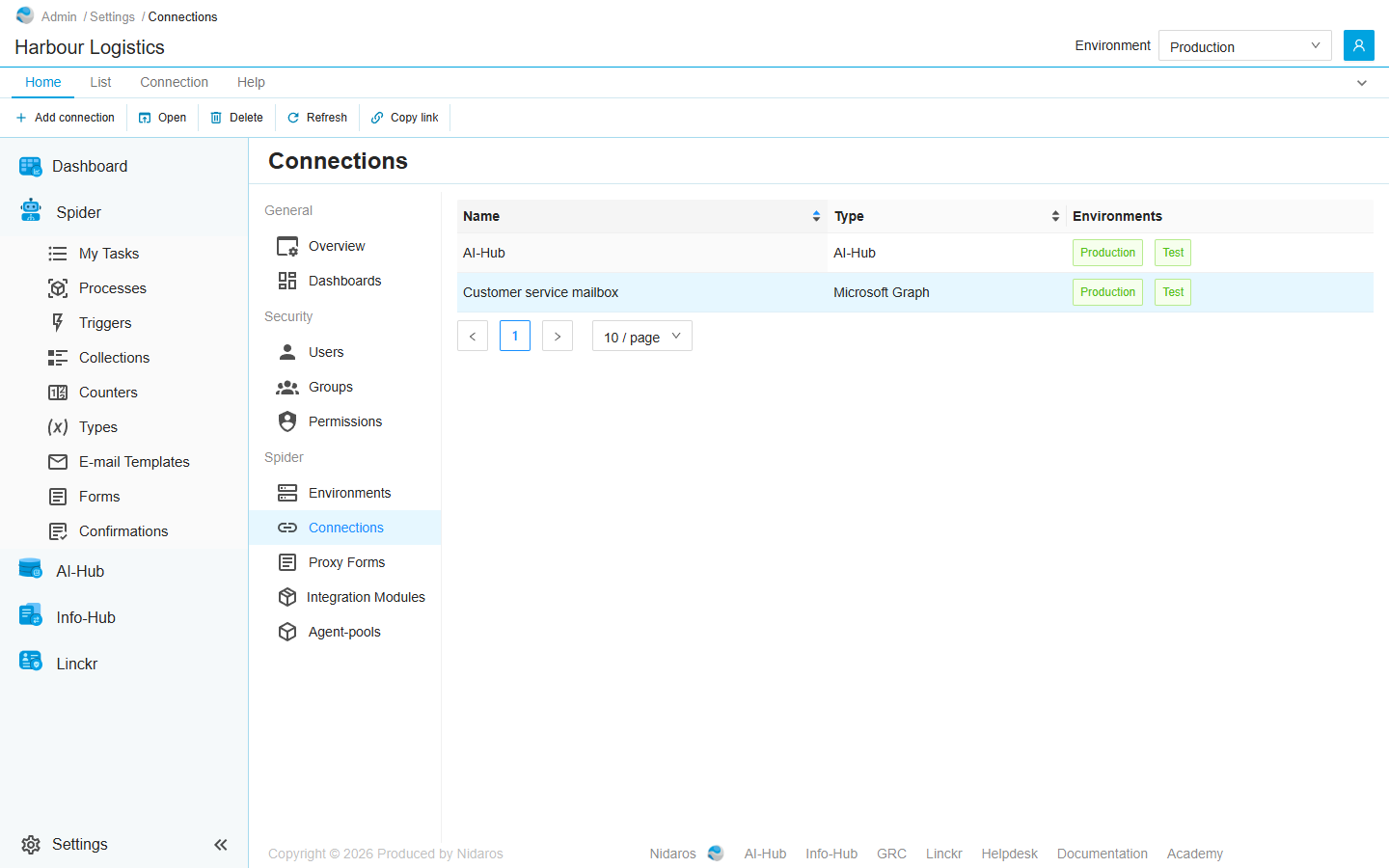
The list
| Column | Shows |
|---|---|
| Name | The connection's name, as an activity's or trigger's Connection input offers it. |
| Type | What it connects to, such as Microsoft Graph or AI-Hub. The types come from the organization's integration modules. |
| Environments | A tag for each environment: green when the connection has its settings for that environment, orange when it has none yet. |
Click a tag to see or change the connection's settings for that environment: see The settings for an environment. Double-click a connection, or select it and click Open, to change its name or description. When a colleague adds, changes or deletes a connection, the list shows it by itself.
Commands
| Tab | Group | Command | What it does | Disabled when |
|---|---|---|---|---|
| Home, List | New | Add connection | Adds a connection: see Add connection. | |
| Home, List | Open | Open | Opens the selected connection: see Change Connection. | Nothing is selected. |
| Connection | Environments | Edit environment | Opens the selected connection's settings for the environment you pick in its menu, as its tags do. | Nothing is selected. |
| Home, List | Manage | Delete | Deletes the selected connection, after asking. | Nothing is selected, or you may not delete this one. |
| Home, List | View | Refresh | Reads the list again. | |
| Home | Share | Copy link | Copies the link to this page. |
Drawers and dialogs
Add connection
- Type: what the connection connects to.
- Name: the connection's name.
- Description: what it is for.
Click Add, or Cancel. The new connection has no settings yet, so all its tags are orange: click each to give that environment's settings. When the connection can't be added, Spider doesn't say so: check the list afterwards.
Change Connection
Open shows the connection's Type, which can't be changed, its Name and its Description. Change them and click Change, or Cancel.
The settings for an environment
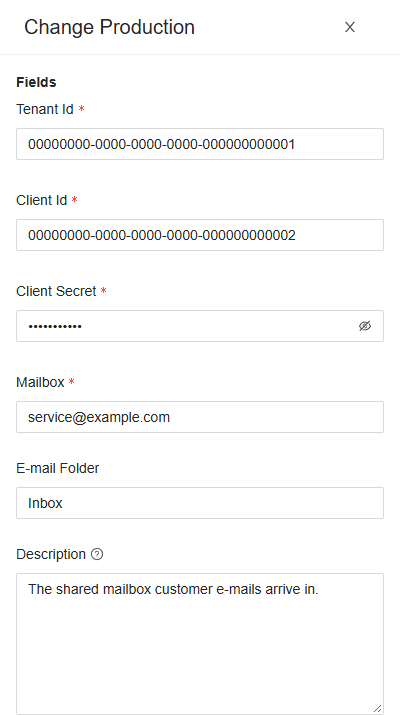
A tag, or Edit environment, opens the drawer Change followed by the environment's name. Under Fields are the settings the connection's type asks for, such as a mailbox's Tenant Id, Client Id, Client Secret and Mailbox. A red asterisk marks a field the type needs. Each field fits its kind: a switch for yes or no, a date picker for a date. A secret, such as a password, shows as dots; the eye beside it shows it.
Fill them in and click Change, or Cancel.
The Description in this drawer shows the connection's own description, not one for the environment.
When you may see the connection but not change it, its drawers are titled after the connection or the environment, show everything read-only, and have only Close.
Delete Connection
Are you sure you want to delete this connection? Click Yes to delete it, or No.
Related chapters
- Environments
- Integration Modules: where the connection types come from.
- Environments, in Part I.