
2.36.24
Users
Everyone who belongs to the organization, or has been invited to it. You invite people here, send an invite again, and open a user to see their groups and permissions.
How to get there
- From the main menu: Settings › Users, in the Security group.
Permission
To open the page you need View organization settings or Manage organization. Member doesn't include it.
Some commands need more:
| Command | Permission sets that allow it |
|---|---|
| Add user, Resend invite | Manage organization |
| Delete | A global administrator's permission to delete users, given in Administration |
Commands you may not use are not shown; see Permissions.
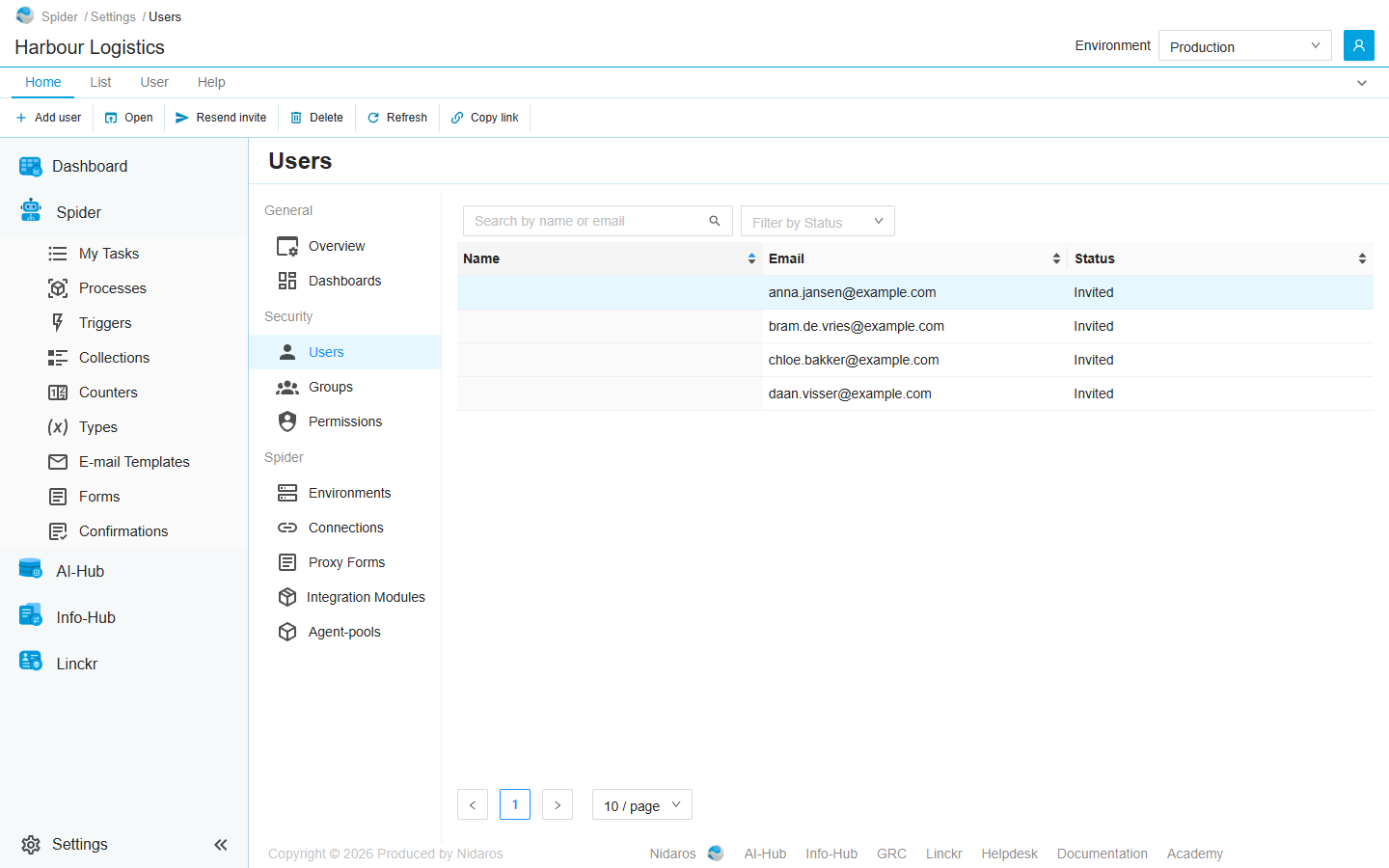
The list
| Column | Shows |
|---|---|
| Name | The user's name, once they have signed in. A user who hasn't yet has none. |
| The e-mail address they were invited at. | |
| Status | Invited while the invite hasn't been accepted, Active once it has. |
Type in Search by name or email to find a user, and use Filter by Status to see only the invited or only the active users. Click a column header to sort.
Double-click a user, or select them and click Open, to see their page: see User. When a colleague invites someone, or an invite is accepted, the list shows it by itself.
Commands
| Tab | Group | Command | What it does | Disabled when |
|---|---|---|---|---|
| Home, List | New | Add user | Invites someone to the organization: see Add User. | |
| Home, List | Open | Open | Opens the selected user's page. | Nothing is selected. |
| List | Open | Open in new tab | Opens it in a new browser tab. | Nothing is selected. |
| Home, User | Account | Resend invite | Sends the selected user's invite again, by e-mail. | Nothing is selected, or the user has accepted it (Only a pending invite can be sent again). |
| Home, List | Manage | Delete | Deletes the selected user, after asking. | Nothing is selected, or you may not delete this one. |
| Home, List | View | Refresh | Reads the list again. | |
| Home | Share | Copy link | Copies the link to the selected user, or to this page. |
Drawers and dialogs
Add User

- Email: the e-mail address to invite.
- Product: the name the invite e-mail gives the product the user is invited to, such as Spider.
Click Add, or Cancel. The user is added to the list as Invited, joins the organization's All Users group, and gets an e-mail with a link to accept the invite. The invite e-mail is in Dutch, whatever language you use. Someone who already has an account, in another organization, keeps it: they are added to this organization too.
When the user can't be added, Spider doesn't say so: check the list afterwards.
Delete user
Are you sure you want to delete this user? The user is deleted from every organization, not only from this one. Click Yes to delete them, or No.
Delete removes the user's account, not only their place in this organization, which is why it is a global administrator's command. There is no command to take someone out of this organization alone. To stop them doing anything here, add them on the Permissions page and set Member to Deny: a Deny wins over the Allow their All Users group has.
Related chapters
- User: a user's page.
- Groups
- Signing in: what an invited user does with the invite.
- Lists