
2.36.24
Proxy Forms
The set-up of the forms of the previous Spider, which members fill in on the Forms page. Each form sends its requests to a process of the previous Spider. You add forms here, change where they send to, and say who may use each one.
How to get there
- From the main menu: Settings › Proxy Forms, in the Spider group. The page itself is titled Forms.
Permission
The page needs Manage organization, which also allows its commands. A form's own Permissions tab can give Delete proxy forms for just that form. See Permissions.
The list
Each form, by Name, with the Process Subject it starts in the previous Spider. Click a column header to sort. Until a form is added, the list says No proxy forms found.
Double-click a form, or select it and click Open, to see its settings: see A form's settings.
Commands
| Tab | Group | Command | What it does | Disabled when |
|---|---|---|---|---|
| Home, List | New | Add proxy form | Adds a form: see Add proxy form. | |
| Home, List | Open | Open | Opens the selected form's settings. | Nothing is selected. |
| Home, List | Manage | Delete | Deletes the selected form, after asking. | Nothing is selected, or you may not delete this one. |
| Home, List | View | Refresh | Reads the list again. | |
| Home | Share | Copy link | Copies the link to the selected form, or to this page. |
Drawers and dialogs
Add proxy form
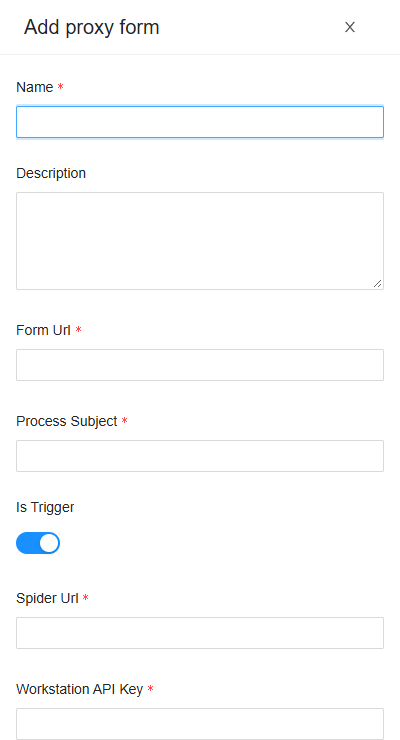
- Name: the form's name, as the Forms page lists it.
- Description: shown under the form's title when it is filled in.
- Form Url: the last part of the form's address in Spider: the form opens at
/forms/followed by this. It must name one of the form pages built into Spider for the organization. - Process Subject: the process of the previous Spider that a request from this form starts. The form's request history lists that process's requests.
- Is Trigger: on by default. Spider keeps it with the form, but nothing in Spider uses it.
- Spider Url: the address of the previous Spider the requests go to.
- Workstation API Key: the key the requests are sent with.
Every field but Description is needed. Click Add, or Cancel. When the form can't be added, Spider doesn't say so: check the list afterwards.
Delete proxy form
Are you sure you want to delete this proxy form? Click Yes to delete it, or No.
A form's settings
The page of one form, titled with its name, under Settings › Proxy Forms. It has two tabs, which don't show in the page's address.
Details
The fields of Add proxy form, filled in. Change them and click Save, on Home or on the Proxy form tab. Save is disabled while nothing has changed (Nothing has changed) or a needed field is empty (Some fields are empty or not valid). Without permission to change the form, its fields are read-only and there is no Save.
Permissions
Who may do what with this form. Pick a user or a group on the left, and set each permission set to Allow, Deny or Not Set:
- Proxy forms: View proxy forms, Add and change proxy forms, Delete proxy forms and Submit proxy forms. Submit proxy forms lets someone fill in this form without the rest; View proxy forms includes its request history.
- Proxy form: the permissions of this form one at a time.
- Permission management: View permissions and Manage permissions.
- Individual permissions: the permissions on this tab one at a time.
A permission set given here holds for this form only. Add proxy form itself is not given per form: it needs Manage organization. The tab needs View permissions or Manage permissions on the form, or Manage organization; Add group or user and Remove are on its Permissions ribbon tab, and on Home. See Permissions.
Related chapters
- Forms: filling in the forms, and their request history.
- Confirmations: the other page of the previous Spider, which uses the address and key of the organization's first form.