
2.36.24
Permissions
Who may do what in the whole organization. A permission set given here holds for everything in it: every process, trigger, collection and setting. For one kind of item, or one item, use the Permissions tab of its list or its page instead.
How to get there
- From the main menu: Settings › Permissions, in the Security group.
Permission
To open the page you need View organization settings, View permissions, Manage permissions or Manage organization. Changing a permission set, and adding or removing a user or group, needs Manage permissions or Manage organization; without it, the page shows every grant, but its boxes can't be changed and the ribbon has no commands. See Permissions.
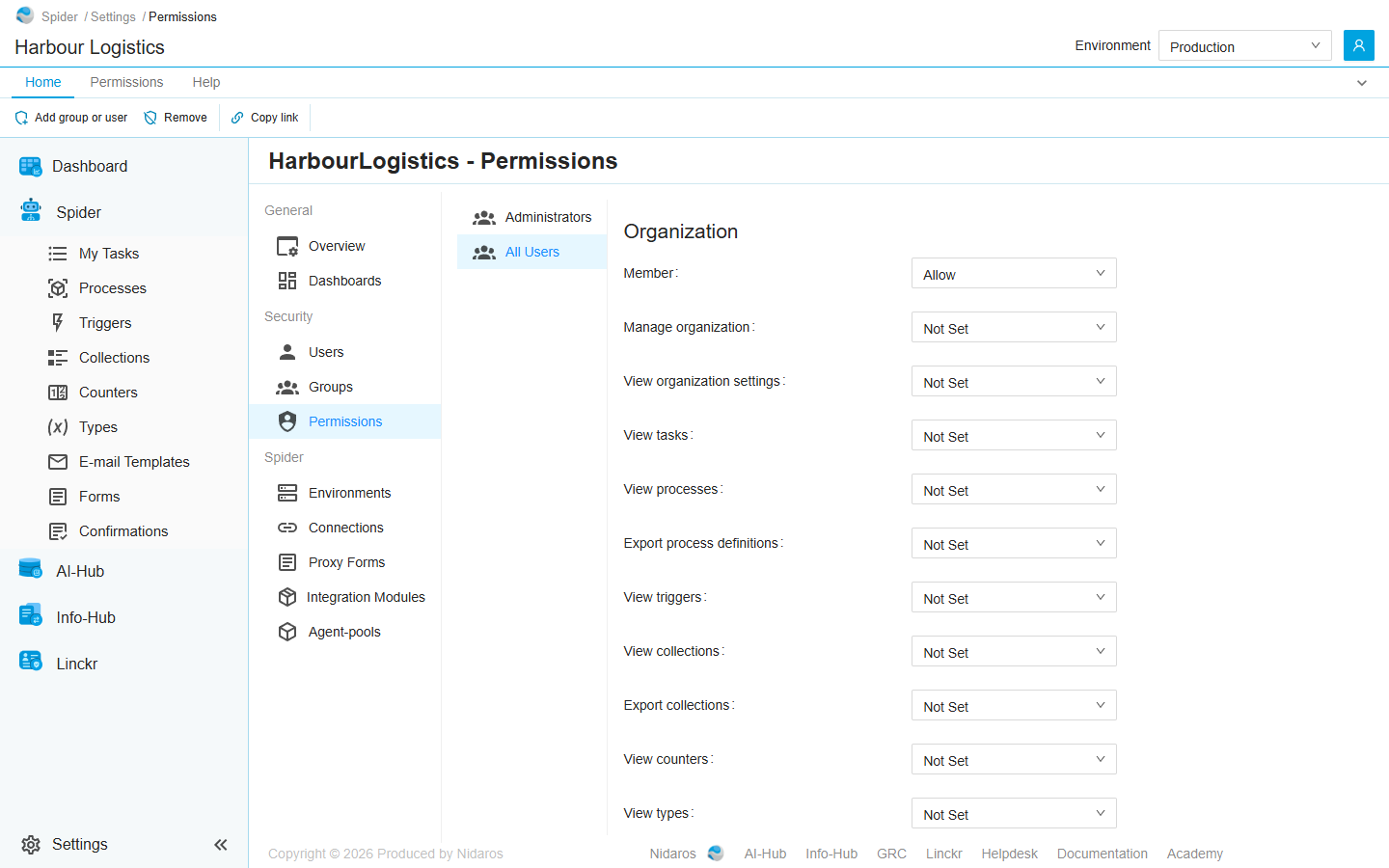
The page
On the left, the users and groups that have permissions here: Administrators and All Users from the start, and whoever is added. Pick one to see its permission sets on the right, each set to Allow, Deny or Not Set.
A change is saved as soon as you pick it. When someone else changed the same grants meanwhile, Spider says A conflict occured while changing permissions, please verify. and shows the grants again: check them, and make your change again if it is still needed.
Organization
| Permission set | What it allows |
|---|---|
| Member | What belonging to the organization means: seeing its dashboards, processes and runs, triggers, collections, counters, types and e-mail templates, and the Overview of its settings. On top of seeing, a member fills in their tasks, submits forms and answers confirmations. All Users has it. |
| Manage organization | Everything in the organization: adding, changing and deleting, and giving permissions. Administrators has it. |
| View organization settings | Seeing the settings pages of Security: users, groups and permissions, read-only. |
| View tasks, View processes, View triggers, View collections, View counters, View types, View e-mail templates | Seeing one area of the app. A member has them all already, so they are there to be denied: see below. |
| Export process definitions, Export collections, Export types | Downloading process definitions, collections or types, which a member can't do. |
Permission management
- View permissions: seeing the Permissions pages and tabs, and a user's Effective permissions.
- Manage permissions: giving and taking permissions, here and on every Permissions tab of the organization.
Narrowing down what members see
The View sets exist to be denied. Give a user or group Deny on View processes, say, and they no longer see the processes and runs, while the rest of what Member allows stays. That way an organization can let some people see only their forms and confirmations, while their dashboard keeps working.
Settings outside Security, such as Environments, Connections and Integration Modules, have no View set: only Manage organization opens them. Agent-pools is a global administrator's, given in Administration.
Commands
| Tab | Group | Command | What it does | Disabled when |
|---|---|---|---|---|
| Home, Permissions | Principals | Add group or user | Adds a user or group to the list on the left, so that you can give it permission sets: see Add group or user. | |
| Home, Permissions | Principals | Remove | Removes every permission the selected user or group has here, after asking. | No user or group is selected (Select a user or group first). |
| Home | Share | Copy link | Copies the link to this page. |
Drawers and dialogs
Add group or user
Pick a user or a group of the organization, and click Add, or Cancel. It then shows on the left, with every set Not Set, until you give it one.
Remove user or group
Are you sure you want to remove every permission … has here? Click Yes to remove them, or No. The user or group stays in the organization, and keeps what it has elsewhere, such as on a list's Permissions tab.
Related chapters
- Permissions, in Part I: how permissions add up, and what you see without them.
- User: why a user may or may not do something.
- Users and Groups