
2.36.24
Groups
The groups of every organization, and of Administration itself. You find a group here, and add groups to Administration.
How to get there
- From Administration's Settings: Groups, in the Security group.
Permission
The page needs View groups or View users and groups; Add group needs Add and change groups. They are in the User management section of Administration's Permissions, and Full access allows them all. See Permissions.
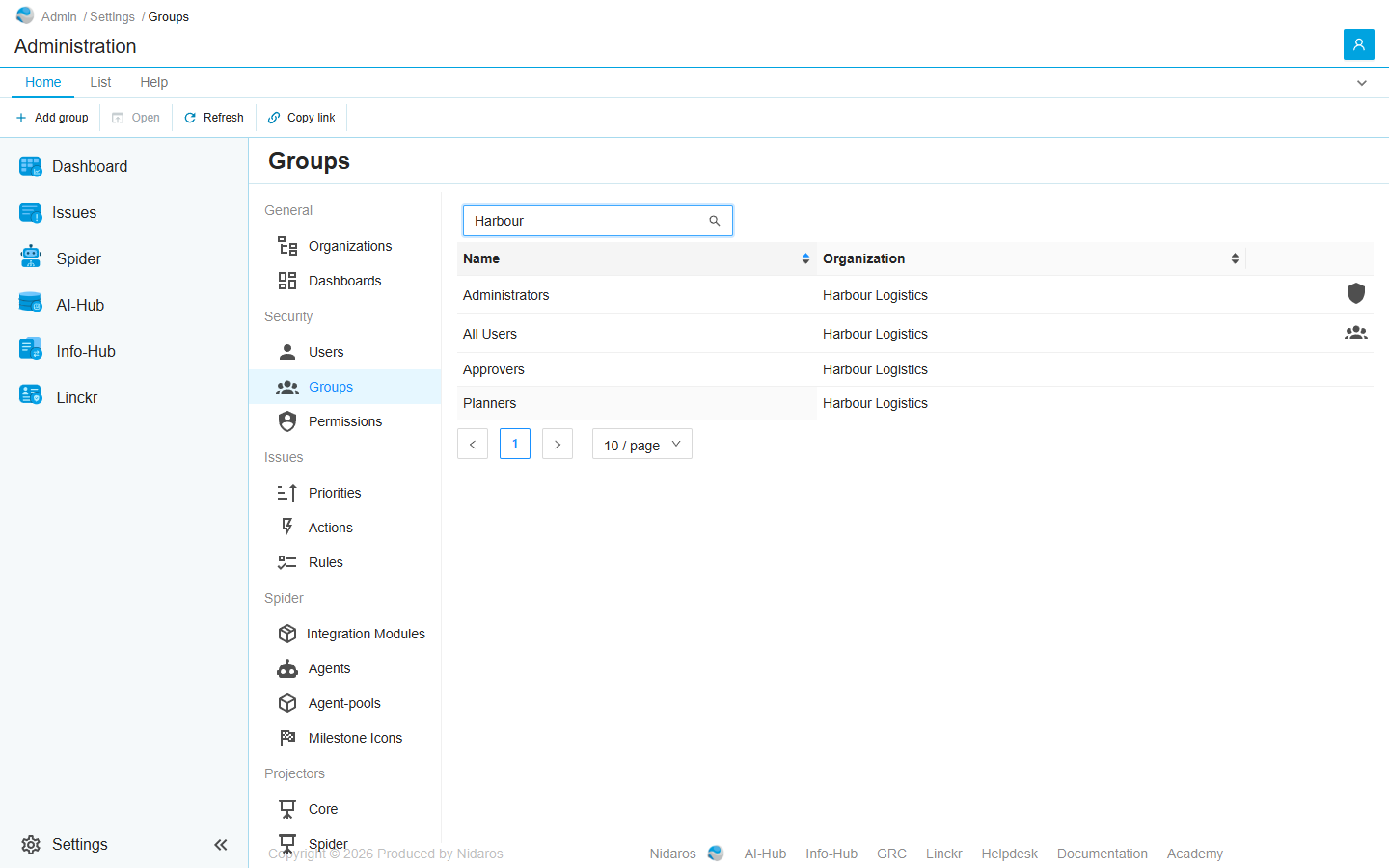
The list
| Column | Shows |
|---|---|
| Name | The group's name. |
| Organization | The organization it belongs to, or Administration. |
Each organization's Administrators and All Users groups carry an icon, whose tooltip names them: see Groups.
Type in Search by name or organization to find a group. Click Name or Organization to sort.
Double-click a group, or select it and click Open, to see its page: see Group.
Commands
| Tab | Group | Command | What it does | Disabled when |
|---|---|---|---|---|
| Home, List | New | Add group | Adds a group to Administration: see Add group. | |
| Home, List | Open | Open | Opens the selected group's page. | Nothing is selected. |
| List | Open | Open in new tab | Opens it in a new browser tab. | Nothing is selected. |
| Home, List | View | Refresh | Reads the list again. | |
| Home | Share | Copy link | Copies the link to the selected group, or to this page. |
A group can't be deleted.
Drawers and dialogs
Add group
- Name: the group's name.
- Description: what the group is for.
Click Add, or Cancel. The group belongs to Administration, with no members and no permissions: open it to add members, and give it permissions on Permissions. An organization's groups are added in that organization: see Groups.
When the group can't be added, Spider doesn't say so: check the list afterwards.
Related chapters
- Group
- Permissions: giving a group permissions on the whole server.