
2.36.24
Tutorial: your first process
In this tutorial you build a small process from scratch, publish it and run it. The process is called Hello world: it takes a name, makes a greeting of it, such as Hello, World!, and writes the greeting to the run's log.
On the way you meet the designer, variables and parameters, activities with their inputs and outputs, an expression, publishing, and a run's page. The concepts chapter explains the words.
The pictures come from Harbour Logistics, the demo organization, which has this same process already. Where a picture shows the settings of the finished process, its fields are grey: a published version can only be read.
Before you start
- Permissions. Manage organization allows everything this tutorial does. Without it, you need Manage definitions to add the definition, Change definitions to build it, and Start runs to start it, and someone with Manage organization to publish it: no other permission set allows publishing. See Permissions.
- The Spider integration module must be active in your organization, for the activities Set Variable and WriteLine. Settings › Integration Modules lists the active modules: see Integration Modules.
- An environment, preferably a test environment, since a run always runs in one. See Environments.
- An agent that can run the activities, connected to Spider. Without one, the run waits with the status Waiting for an agent. Ask your administrator.
If your organization has a process called Hello world already, give yours another name: two definitions can't have the same name, and Add then adds nothing, without saying so.
1. Add the process definition
In the main menu, open Spider › Processes.
Click Add process on the ribbon.
Type the Name: Hello world.

Click Add.
The new definition is a draft, so the page shows its Drafts tab. Double-click Hello world to open it, and click Edit on the ribbon. The Designer opens, with an empty canvas.
On the right of the tabs, the designer's check already says Errors (2). Click it to see why: The process has no start event and The process has no end event. The check keeps up with every change you make, so watch the errors go as you build.
2. Add the variables
The process needs two variables: Name, the name to greet, and Greeting, the greeting it makes of it.
Click the designer's Variables tab, and then Add variable on the ribbon.
Fill in the drawer:
- Name: Name. A variable's name may contain only letters, digits, underscores and hyphens.
- Type: leave it at String, a text.
- Description: Who to greet.
- Tick Allow use of this variable as a parameter: the name is given when the run starts.
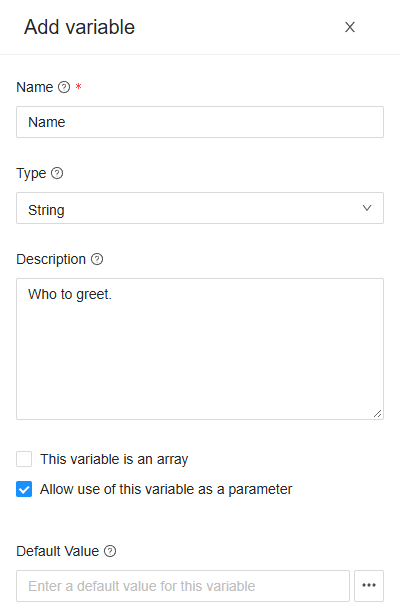
Click Add.
Add a second variable the same way: Name Greeting, Type String, and not a parameter.
The Variables tab now lists both:

3. Place the nodes
Go back to the Process tab. The commands that add nodes are on the ribbon's Designer tab, in the Insert group:

Click Start event, and then End event. Each new node lands in the upper left of the canvas, so the two end up on or near each other.
Click Activity. The Activities list opens next to the canvas, with every activity of your organization's integration modules.
Type Set Variable in Search Activities, and click Set Variable to add it.
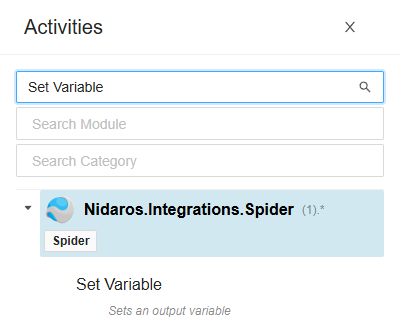
Search for WriteLine the same way, and click it.
Close the list with its ×.
Now drag the nodes apart, into a line from left to right: Start, Set Variable, WriteLine, End. Drag an activity by its middle, and an event by its name, below its circle.
4. Connect the nodes
A link leaves a node from its right edge and enters the next node at its left edge. Those edges are the nodes' ports.
- Point at the right edge of Start, and drag from there to the left edge of Set Variable. Let go on that edge: an arrow now links the two.
- Link Set Variable to WriteLine the same way, and WriteLine to End.
Dragging a node from the middle moves it; dragging it from its edge draws a link. If a node moved instead, drag it back and try again closer to its edge.
The check now finds two errors left: Set Variable: The input 'Value' is required, but has no value, and the same for the Message of WriteLine.
5. Set up the first activity
Click Set Variable to select it, and click the i on its corner (or Properties on the Designer tab). The activity's drawer opens. Everything you change in it is saved at once.
On Details, type the Display Name: Compose the greeting. The canvas shows this name instead of the activity's.
On Inputs, type this into Value:
concat("Hello, ", {Name}, "!")This is an expression.
{Name}reads the variable Name, andconcatjoins the three texts into one: for the name World, Hello, World!.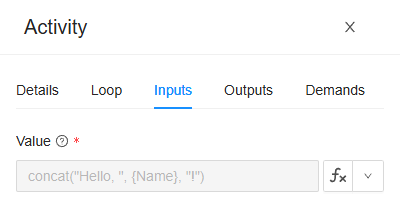
The ƒx next to the field shows that the value is read as an expression, which is how a new input starts. Click it to build the expression in a dialog instead of typing it: see Expressions. The arrow beside it chooses another way to fill the input in, such as Variable or Literal (a fixed value): see Inputs.
On Outputs, pick Greeting under Result. What Set Variable works out goes into that variable.

Close the drawer with its ×.
6. Set up the second activity
Open the drawer of WriteLine the same way.
On Details, type the Display Name: Write the greeting.
On Inputs, type
{Greeting}into Message. WriteLine writes its message to the run's log.
WriteLine gives nothing back, so it has no Outputs tab. Close the drawer.
The check now says No errors, and the process is done:
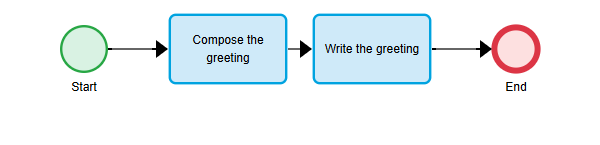
7. Publish it
Click Publish on the ribbon. Spider asks which version number to give it.
Pick Major (1.0): this is the first real version. (Minor (0.1) is picked at first.)
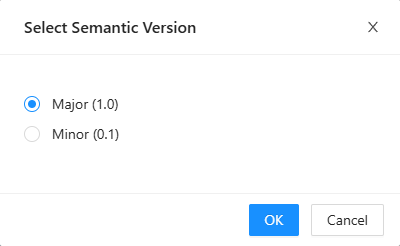
Click OK.
Spider opens the page of Hello world 1.0. The draft is gone: to change the process later, click Edit, which makes a new draft from this version. See Version and publishing.
8. Start a run
Click Start on the ribbon. The Start Process Run drawer opens.
Pick your test environment under Environment, such as Test.
Leave Start at empty, at At once.
Under Parameters, type World as the Name. Each parameter of the process gets a field here.
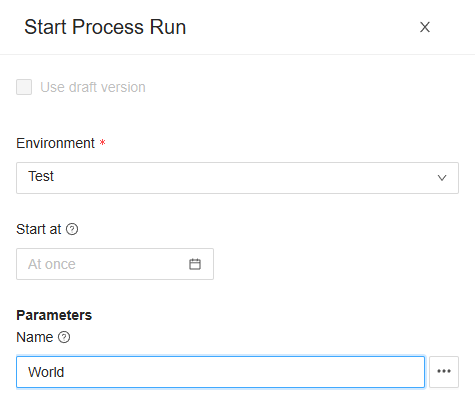
Click Start.
Spider opens the page of the new run.
9. Follow the run
The run page's header shows the run's reference, its status and its environment. Within a few seconds, the status becomes Succeeded, the green tick:
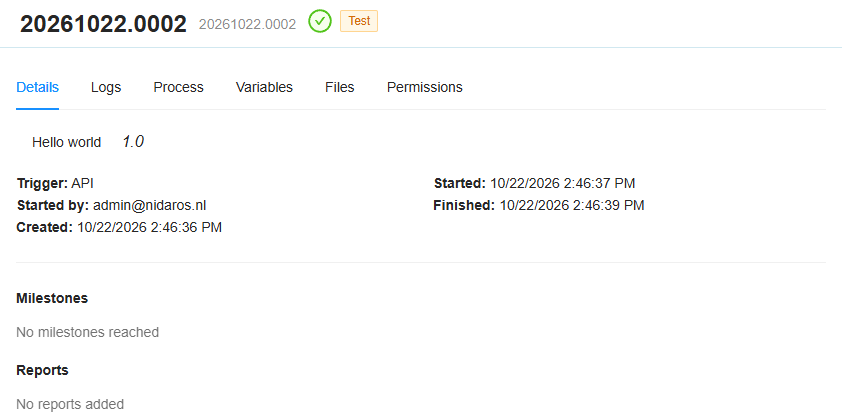
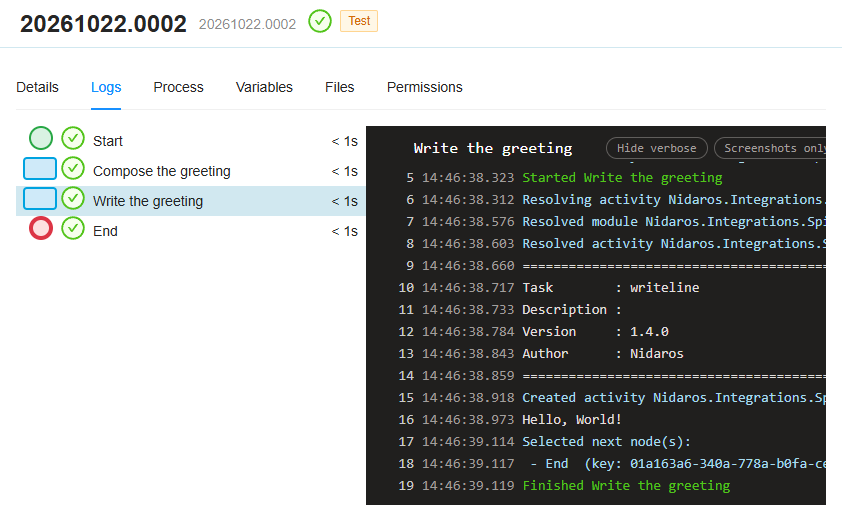
Click the Logs tab, and then Write the greeting in the list of nodes. Its log shows the agent being found and the activity being run, and then, on a line of its own, the greeting: Hello, World!.
The Variables tab shows what the run's variables hold now:

If the run doesn't finish:
- Waiting for an agent: no agent that can run the activities is connected. The run goes on by itself once one is.
- Failed: the Details tab shows the error, and the Logs tab marks the node that failed in red. Fix the process: Edit, correct it, and publish it again. Then start a new run. See Process run.
What's next
You built, published and ran a process. From here:
- Change it. Edit makes a new draft. Try one without publishing it: Start with Use draft version ticked runs the draft. Publish the change as Minor (1.1).
- Let it start by itself. A trigger starts runs when something happens, such as a form being submitted: see Triggers.
- Look around the pages you used: Processes, Process definition, Designer and Process run.